
PS1 BIOS Files (USA, Japan, Europe, China) Download by Regions
These PS1 BIOS files work seamlessly across all platforms, guaranteeing smooth gameplay with the most popular emulators available today.
Download PS1 BIOS Files for All Regions – USA, PAL, NTSC, NTSC-J
Get the Ultimate PS1 BIOS Collection (Master File with All Versions).
Our PS1 BIOS files are completely safe and guaranteed to be virus-free!
Here are some other BIOS file versions Dumped by Various Users.
Finding the right BIOS file can be challenging, especially when you need specific versions that have been Dumped by Various Users across different communities. Some enthusiasts have shared other regional variants that work perfectly with different emulators. These community-contributed files often provide better compatibility than generic options, making your gaming experience much smoother.
SCPH-1000 [NTSC-J]
SCPH-1001 [NTSC-U/C]
SCPH-1002 [PAL]
SCPH-3000 [NTSC-J]
SCPH-3500 [NTSC-J]
SCPH-5501 [NTSC-U/C]
SCPH-5500 [NTSC-J]
SCPH-5502 [PAL]
SCPH-5552 [PAL]
SCPH-7000 [NTSC-J]
SCPH-7001 [NTSC-U/C]
SCPH-7002 [PAL]
SCPH-7003 [NTSC-J]
SCPH-7501 [NTSC]
SCPH-7502 [PAL]
SCPH-9002 [PAL]
SCPH-100 [NTSC-J]
SCPH-101 [NTSC-U/C]
SCPH-102A [PAL]
SCPH-102B [PAL]
SCPH-102C
How to Use PS1 BIOS on Mobile and PC
Setting up PlayStation 1 emulation requires understanding how the BIOS works with your chosen emulator. The PS1 BIOS serves as the necessary bridge between your mobile or PC hardware and the games you want to play. Accurate emulation depends heavily on having the right BIOS files configured properly.
Following the correct steps ensures your emulator supports PS1 titles without crashes or compatibility issues. Whether you’re using Mobile devices or desktop computers, the Use of proper BIOS files makes all the difference in your gaming experience.
Steps to Use PS1 BIOS on Android
Download DuckStation Emulator: Getting the DuckStation Emulator is straightforward – you can Install it directly from the Google Play Store or download it from the official website. I’ve personally found the Play Store version more reliable for automatic updates.
Download PS1 BIOS: You’ll need to Obtain the BIOS file like SCPH1001.BIN from your own PS1 console or find a legal source online. This Download process for PS1 BIOS files requires patience since authentic files are essential for proper emulation.
Transfer the BIOS to Your Device: Transfer your BIOS file to your Android device using a USB cable, cloud storage, or file manager for easy access.
Place the BIOS in the Emulator: Set the BIOS path within DuckStation by navigating to BIOS Settings through Settings, then open the folder containing your BIOS file.
Load a Game: Transfer your PS1 game ROMs to your device, then open DuckStation and navigate to the game file to start playing.
Steps to Use PS1 BIOS on Windows & Mac (DuckStation)
Download DuckStation Emulator: To access PSBios files, visit the DuckStation website and download the emulator. Install it on your PC or Mac.
Download PS1 BIOS: Get the BIOS file like SCPH1001.BIN legally from your owned PS1 console. Download PS1 BIOS through proper extraction methods.
Locate the BIOS Folder: Locate the correct directory by opening DuckStation first, then go into Settings and select BIOS Settings to note the specific folder path where each BIOS file needs placed.
Move the BIOS to the Correct Folder: Copy your BIOS file into the folder specified within BIOS settings for proper functionality.
Load a Game: To load your favorite PlayStation title, you’ll need either a PS1 ROM file or the original disc if your PC supports disc reading. Open your chosen emulator, then load the game file and start playing immediately.
Common PS1 BIOS Errors and Fixes
Troubleshooting PS1 BIOS problems requires understanding Common Errors and their Fixes. This list covers the most common errors you’ll encounter while emulating PS1 games. Potential fixes will help you troubleshoot issues quickly and get back to gaming without frustration.
No BIOS Loaded in the Emulator
Issue: The emulator doesn’t recognize your BIOS file, showing “No BIOS Loaded in the Emulator” error message.
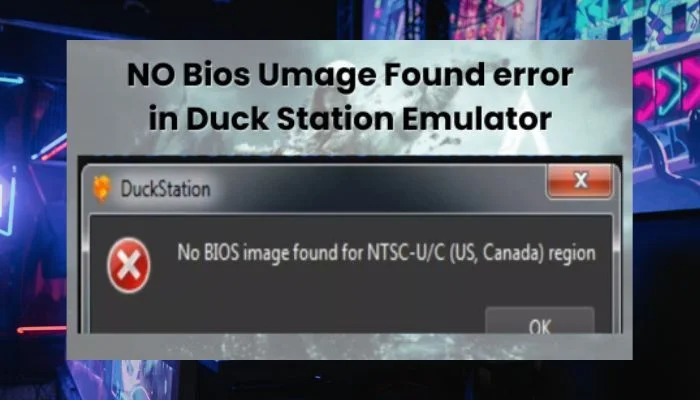
Fix: Configure your emulator to load files from the designated directory, then ensure the BIOS is placed in the correct folder and named properly as SCPH1001.BIN for optimal functionality.
Game Crashes After BIOS Screen
Issue:Your game starts normally but crashes right after the BIOS intro sequence appears on screen, displaying “Game Crashes After BIOS Screen” error.
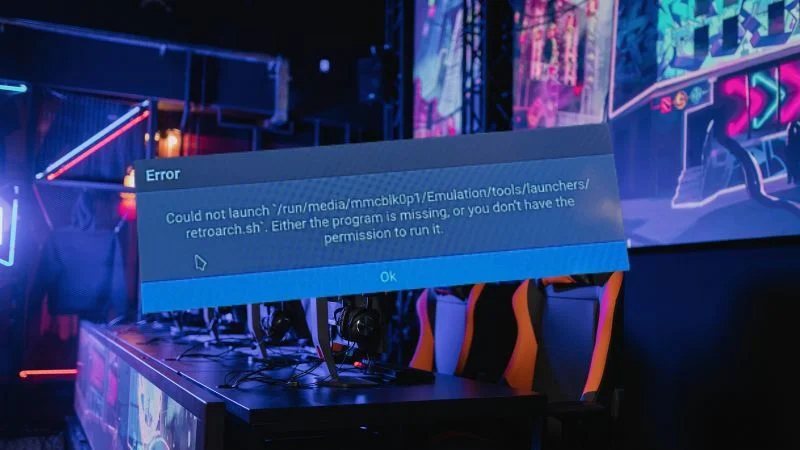
Fix: Check region compatibility between NTSC and PAL formats first, then re-dump or re-download the BIOS file from a legitimate source. Verify your game ROM’s compatibility with your emulator settings.
Lagging or Slow Game Performance
Issue: Games run much slower than usual and stutter frequently, causing “Lagging or Slow Game Performance” problems.
Fix: Ensure using the correct BIOS version for your region first, then optimize your emulator’s CPU, video, and audio settings. Lower resolution, enable frame skipping, and adjust rendering options strategically.
Incorrect Region Error
Issue: Your game doesn’t run due to a region mismatch, showing “Incorrect Region Error” message.
Fix: European PAL games require SCPH7502.BIN, while North America NTSC-U titles need SCPH1001.BIN as the appropriate BIOS. Use matching region files for your game’s compatibility – this example shows proper pairing methods.
Corrupted Save Files
Issue: Corrupted Files prevent save data from functioning properly, causing games to load and become corrupt unexpectedly.
Fix: Create new memory cards within your emulator first, then delete old save files that cause conflicts. Ensure you’re using proper BIOS files to manage save states effectively.
The Game Freezes or Stutters During Cutscenes
Issue: Games freeze or glitch during cinematic sequences, showing “The Game Freezes or Stutters During Cutscenes” problems.
Fix:Update your emulator and graphics plugins for smoother playback, then verify your game ROM’s integrity. Use recommended BIOS files for better emulation accuracy.
Disc Image Not Detected
Issue: Disc Image Not Detected messages appear when your emulator fails to load ISO, BIN, or CUE formats from the game’s disc image.
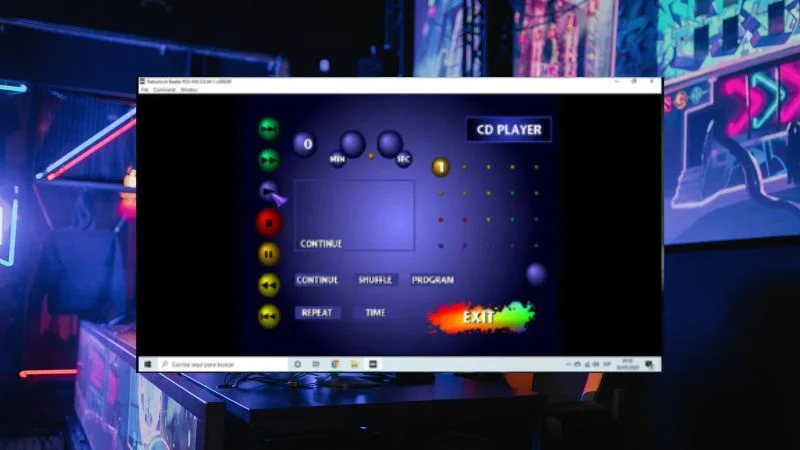
Fix: Check your BIN games have valid CUE files and aren’t corrupted, then redump the disc if necessary to ensure game files are correctly formatted.
Screen Tearing or Graphic Glitches
Issue: Visual issues like tearing, pixelation, or missing textures appear, causing “Screen Tearing or Graphic Glitches” problems.
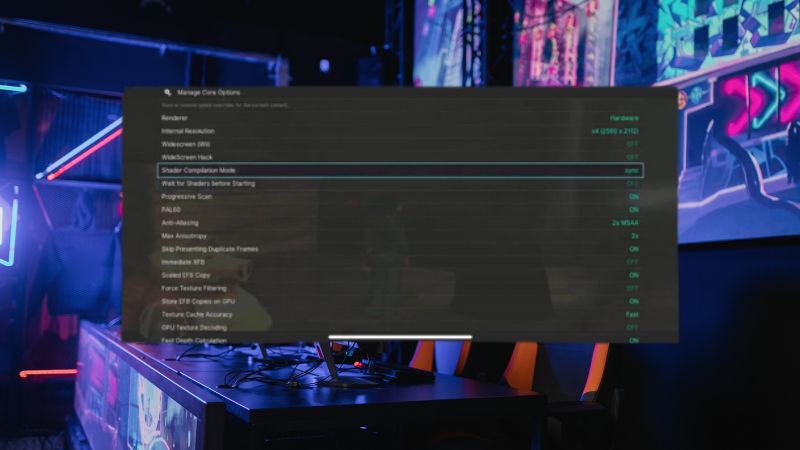
Fix: Enable V-Sync to reduce tearing issues, then experiment with rendering modes for better compatibility. Update your graphics plugin settings within the emulator.
High CPU Usage or Overheating
Issue: High CPU Usage and Overheating occur when your emulator causes your PC or device to heat up and lag during gameplay.
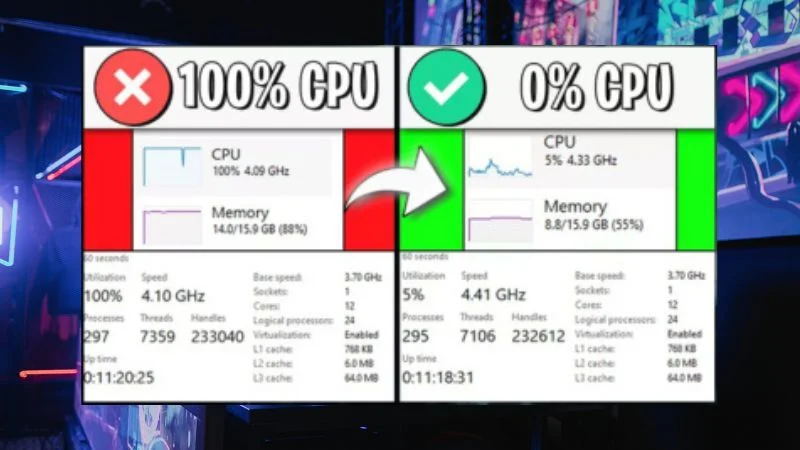
Fix: Disable resource-intensive features like texture filtering and advanced shaders, then lower your emulator’s resolution for cooler operation.
Audio Desync or Lag
Issue: Sound goes out of sync or becomes delayed during gameplay, causing “Audio Desync or Lag” issues.
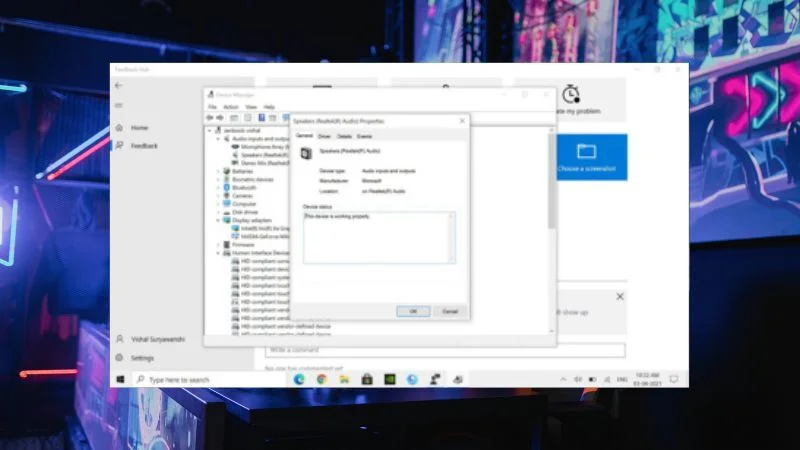
Fix: Adjust audio latency settings within your emulator, then use a BIOS that fits your ROM type and game region for improved synchronization.