
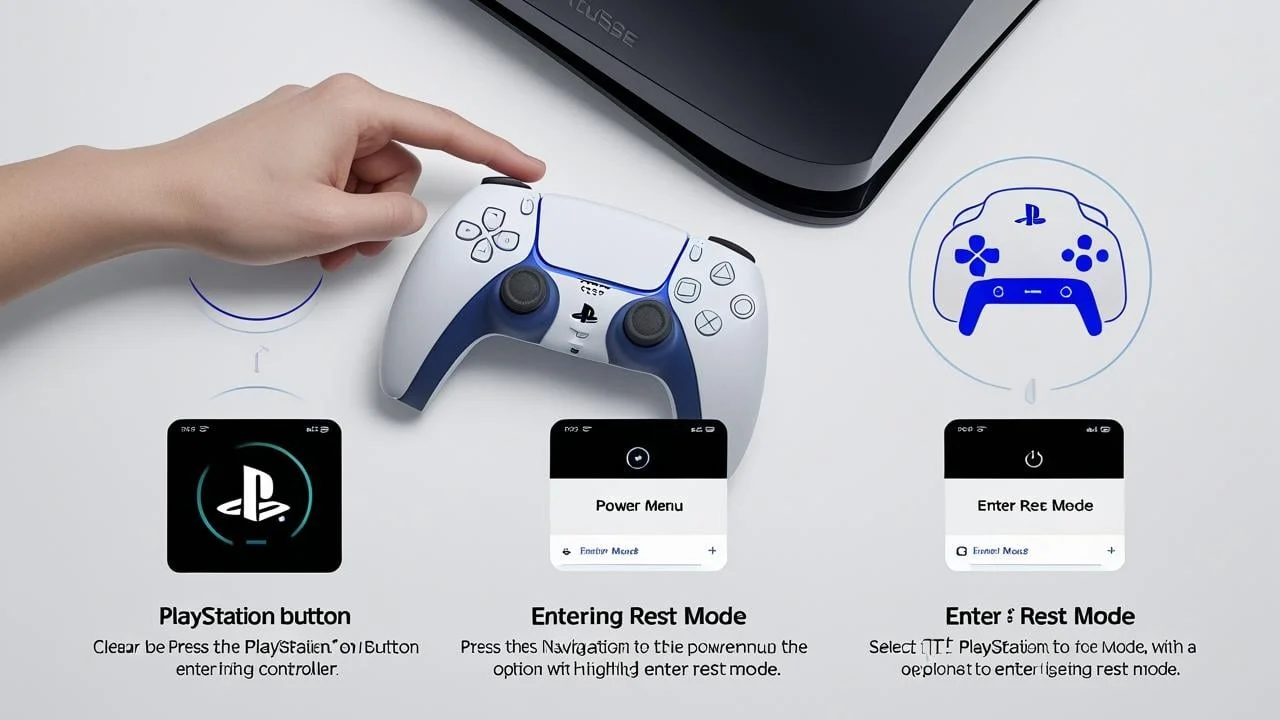
Your PS5 comes packed with incredible features designed to improve every aspect of your gaming experience, with rest mode standing out as one of the most useful tools available. This functionality allows you to download games remotely while you’re away from home or charge your controllers without keeping the entire system fully active and consuming maximum power. However, many gamers who are new to Sony’s console or those switching from competing platforms often struggle with understanding how to properly Put their PS5 in Rest Mode.
Think of rest mode as much more than a simple pause button for your gaming session. This intelligent feature enables your console to handle important background tasks such as installing critical updates, syncing your game saves to the cloud, and charging any connected accessories you might have. The beauty lies in how it uses significantly less power compared to when your system operates fully on, making it remarkably energy efficient. Throughout this comprehensive article, I’ll explain the most effective methods to activate rest mode on your PS5, providing step-by-step instructions. Additionally, we’ll explore extra settings you can customize, discover different ways to enable this feature, and share essential tips for using it safely.
What Is Rest Mode on PS5
Rest mode functions as a specialized low-power state that allows your PS5 to remain operational while staying dormant without using full energy consumption. During this intelligent mode, your console performs several critical functions:
Automatically charges your controllers through available USB ports Continuously keeps downloads and game updates running in the background Seamlessly syncs your saved data to cloud storage when you’re a PlayStation Plus member Enables your system to wake up significantly faster than a complete full startup sequence
This particular mode proves incredibly helpful for dedicated users who prefer keeping their system constantly up to date without leaving it fully powered and consuming unnecessary electricity.
Method 1: Using the PS5 Control Center
To successfully activate rest mode directly from your controller, follow this streamlined process:
Simply press the central PlayStation button located on your DualSense controller Carefully scroll toward the right side of the Control Center menu interface Select the distinctive Power icon from the available options Choose the “Enter Rest Mode” option from the displayed list
Your screen will gradually darken, and you’ll notice a distinctive orange light beginning to glow on your console. This visual indicator confirms your PS5 is now successfully operating in rest mode.
Method 2: Using the PS5 Power Menu
Alternatively, you can enter rest mode directly from your home screen using this approach:
Navigate from the main screen and press the PlayStation button Access the Control Center interface Choose the Power option from the bottom row of icons Click on “Enter Rest Mode” to proceed
This particular method works flawlessly even when no games are currently running. It’s both quick and reliable for immediate activation.
Method 3: Set Rest Mode Automatically
You can configure your PS5 to automatically enter rest mode after a predetermined set time period:
Navigate to Settings in your system menu Choose System from the available options Select Power Saving preferences Click on “Set Time Until PS5 Enters Rest Mode” Pick your preferred time duration for when playing media or playing games
This automated feature helps you save energy efficiently if you frequently forget to manually power down your console yourself.
Method 4: Enable Rest Mode Using Remote Play
When utilizing PS Remote Play functionality, you can put your PS5 into rest mode remotely from anywhere:
Open the dedicated Remote Play app on your phone or computer Establish a connection to your PS5 system When your session is done, open the Control Center within the Remote Play interface Select Power and then choose “Enter Rest Mode”
This proves extremely useful when you’re physically far from your console but still want to manage its power state remotely.
Method 5: Use Voice Commands with PlayStation Link Devices
Compatible accessories like the PlayStation Link headset and Pulse Explore earbuds provide voice control capabilities. When voice commands are activated:
Speak the activation phrase, such as “Hello PlayStation” Clearly state “Enter Rest Mode”
Note: This feature functions exclusively when voice activation has been configured in your console settings.
Method 6: Put PS5 in Rest Mode While Downloading
You can securely transition your PS5 into rest mode during active downloading of games, updates, or content. Your console will maintain downloading processes in the background, despite the screen being inactive.
Before initiating this process:
Access Settings Navigate to System, followed by Power Saving Choose “Features Available in Rest Mode” Verify “Stay Connected to the Internet” is activated
Once you activate rest mode, both downloads and uploads will persist uninterrupted. This approach is beneficial when you wish to save energy or minimize fan noise during waiting periods.
Method 7: Put PS5 in Rest Mode Without a Controller
To transition your PS5 into rest mode without a controller, utilize the physical power button on the console.
Execute these steps:
Depress and maintain the Power button on your PS5’s front panel Allow for the second beep, approximately three seconds Release the button entirely. Your console will transition to rest mode
An orange light will illuminate, indicating low-power mode activation. This approach proves useful when your controller lacks battery or is disconnected.
Method 8: Put PS5 in Rest Mode Using PlayStation Portal
When utilizing the PlayStation Portal, you can transition your PS5 to rest mode via its menu interface.
Process steps:
Activate the PlayStation button on your Portal device Launch the Control Center interface Navigate to the Power icon and choose “Enter Rest Mode”
The Portal replicates the PS5 interface, making the process identical to controller usage. Ensure your network connection remains stable when transmitting the power command.
Safety Tips for Using Rest Mode
Utilizing rest mode remains secure with proper usage. Essential tips:
Never disconnect your PS5 during rest mode. Allow the orange light to extinguish before removing power. Avoid relocating the console while active or in rest mode. Verify power settings permit USB ports to remain active for device charging. Should your system experience waking difficulties from rest mode, try updating system software or utilizing Safe Mode for database reconstruction.
Customize Rest Mode Settings
To gain enhanced control over your console’s rest mode functions:
Navigate to Settings Choose System, then Power Saving Select “Features Available in Rest Mode” Determine what remains active, including USB charging or network access
This guarantees your console operates according to your preferences during resting periods.
Conclusion
Activating PS5 rest mode is straightforward and beneficial. You can accomplish this via controller, settings, remotely, or through voice with appropriate devices. Rest mode conserves power, maintains updates, and charges accessories during your absence. Through settings customization and safety adherence, you can utilize rest mode confidently daily.
Having mastered this feature, configure it to match your gaming preferences. Whether you play daily or occasionally, rest mode maintains your system ready and updated. If this guide proved valuable, examine your console settings today and maximize your PS5’s capabilities.
If you are a retro gamer, then you must visit our site, psbios.info, to get the latest updates on PS.
