
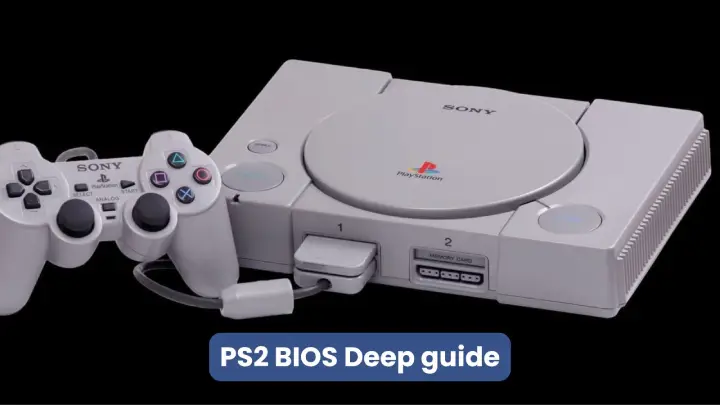
The PlayStation 2 (released in 2000) remains one of gaming’s most beloved consoles. Its hardware design and huge library shaped a generation — from God of War II to GTA: San Andreas. Emulation lets modern players revisit those titles, but a fundamental piece is the PS2 BIOS: the console’s firmware that initialises hardware and provides the low-level routines games expect. Using a proper, legally obtained BIOS gives the most accurate, stable experience and unlocks features like memory card support and the system menu.
Key note: downloading BIOS files from random websites is risky and typically violates copyright — the recommended legal approach is to dump the BIOS from a PS2 you own.
A slightly deeper technical look — what the PS2 BIOS actually contains
At a high level, the PS2 BIOS includes the console’s built-in startup code and system libraries used by games. In practice, the Initialises
- Initializes hardware — CPU cores, DMA units, and attached devices (controllers, memory card ports).
- Exposes system calls and runtime libraries that games call for input, file I/O, and system services.
- Provides region/locale behaviour — boot logos, retail menu behaviour and region checks (NTSC-U, PAL, NTSC-J).
- Contains small OS-like elements used by game loaders and some homebrew apps.
Because many PS2 games make low-level calls into these routines, the BIOS determines how faithfully an emulator can reproduce the original behaviour.
(If you want an even deeper, byte-level breakdown of the BIOS ROM mapping and the PS2’s custom chips — Emotion Engine, IOP, GS — tell me and I’ll add a developer-style appendix.)
BIOS vs Emulation approaches: HLE vs LLE — the unique section
Most emulators use one of two methods for reproducing console behaviour:
High-Level Emulation (HLE)
- Emulates system APIs and services at a high level without running the console’s original firmware.
- Pros: often faster and easier to maintain, no BIOS required.
- Cons: less accurate; compatibility problems with games that rely on undocumented behaviour.
Low-Level Emulation (LLE) — BIOS-based
- Uses the original BIOS (or reproduces its behaviour at a low level) and emulates the console’s hardware calls precisely.
- Pros: highest compatibility and authenticity; fewer game-specific glitches.
- Cons: requires a legal BIOS dump and typically needs more accurate emulation layers (more demanding).
Which to pick?
- Use LLE (BIOS) when you want the widest compatibility and authentic behaviour — necessary for problematic titles, copy-protected discs, or games using unique hardware calls.
- Use HLE only if you have performance constraints and the games you play are known to work well with HLE.
This comparison helps you choose the right tradeoff between accuracy and raw speed.
Where to run PS2 emulation (what platforms and emulators)
- PC (Windows/macOS/Linux) — PCSX2 is the most mature option with wide compatibility and many customisation options. PCSX2 also publishes a setup guide, including how to dump your BIOS legally.
- Android (ARM) — AetherSX2 is a popular actively developed build for modern Android devices (there are official builds and community build repos). For mobile, the right emulator build matters a lot.
- Other builds/forks — Community forks (NetherSX2, patched builds) sometimes provide game-specific fixes or anti-tamper workarounds; they’re useful if you run into a title with known issues. Use reputable sources for builds.

Legal note and how to obtain a BIOS legitimately
- The PS2 BIOS is copyrighted by Sony; downloading BIOS files from random sites is generally illegal and risky. The accepted legal approach is to dump the BIOS from a PS2 you own using homebrew utilities (FreeMcBoot + dumper tools, uLaunchELF, ps2dumper, etc.). PCSX2’s documentation explains the safe dumping approach.
Step-by-step (expanded) — preparing and configuring PS2 emulation
Below is a practical, non-illicit workflow. For detailed, platform-specific commands and downloads, follow the emulator docs linked above.
Step 1 — Dump BIOS from your PS2 (legal)
- Install a FreeMcBoot-enabled memory card (or other homebrew loader) and a BIOS dumper (uLaunchELF + ps2dumper).
- Run the dumper and copy the BIOS files to the USB, then to your PC. (See PCSX2 dump docs for detailed steps.)
Step 2 — Choose the emulator
- PC: PCSX2 (best for custom plugins, widescreen patches, save handling).
- Android: AetherSX2 builds (choose the latest stable build for your device).
Step 3 — Install & configure
- Point the emulator to your dumped BIOS folder and select the matching region.
- Install/update graphics and audio plugins (PCSX2 uses plug-in architecture) or select a renderer/backends on mobile.
- Configure input (emulated DualShock mapping / physical controller).
Step 4 — Add games (legal)
- Rip your own PS2 discs to ISO using a DVD drive or use backups you legally own. PCSX2 docs explain safe dumping of discs.
Step 5 — Test and choose HLE or LLE
- Try the BIOS-based LLE first for the highest compatibility. If a game runs poorly, check emulator compatibility lists and community threads for game-specific settings or recommended builds.
Ready-to-use performance presets (practical & unique)
Below are concrete presets you can paste into emulator settings as starting points. Tweak per game.
PC (mid-range) — quad-core CPU, dedicated GPU, 8GB RAM
- Renderer: OpenGL or Vulkan (try Vulkan first).
- Internal Resolution: 2x native (scale up later if stable).
- Speedhacks: Disabled by default; enable game-specific safe hacks only.
- Audio: XAudio2 / default plugin.
- BIOS mode: LLE (use dumped BIOS).
PC (high-end) — 6+ cores, modern GPU, 16GB+ RAM
- Renderer: Vulkan, internal resolution 3–4x native.
- Allow 8x anisotropic filtering, enable texture scaling.
- Use frame-limiter as desired; disable unnecessary speedhacks.
- BIOS mode: LLE, use region matching for problematic titles.
Android (flagship) — 8 GB+ RAM, Snapdragon 8 series/equivalent
- Renderer: Vulkan backend if available.
- Internal Resolution: 1.5–2x native (2x for powerful devices)
- Multi-threaded rendering: enabled.
- BIOS mode: LLE with your dumped BIOS. Use AetherSX2’s recommended settings for your build.
Android (mid-range) — 6 GB RAM, mid-tier SoC
- Renderer: OpenGL if Vulkan is unstable.
- Internal Resolution: native or 1.5x.
- Quick hacks: Enable simple speedhacks, reduce background tasks.
- BIOS mode: LLE recommended, but try HLE only if BIOS causes black-screen issues (rare).

Advanced tips & tricks
- Memory card handling: Back up your saved memory card files (they’re just files on your PC). Keep multiple slots for different playthroughs.
- Widescreen & aspect patches: Some games need community widescreen patches; use them only from reputable modders and test for visual glitches.
- Controller mapping: Use a PlayStation-style mapping for comfort — many emulators include built-in PS2 controller presets.
- Game-specific configs: Consult the emulator’s compatibility list before fiddling — sometimes CPU mode changes (EE/IOP) or microtransaction fixes are required.
Troubleshooting checklist (quick)
- Black screen at startup: Check BIOS path & integrity; try another region BIOS.
- Crashes/freeze: Update emulator; try different plugins/renderers; check the community or per-game patches.
- Slow performance: Lower internal resolution, disable expensive post-processing, or enable approved speedhacks.
- Save/load fails: Verify memory card files and emulator memory card path.
Sources & where to read more
- PCSX2 official setup & BIOS dump documentation.
- AetherSX2 builds Android support resources.
- Community and legal discussion on BIOS download legality (guidance: dump from your own console).
- Community patches and forks (NetherSX2) for extra fixes.
Expanded FAQs (SEO-focused)
Q: Is it legal to use a PS2 BIOS with an emulator?
A: The safe, widely recommended approach is to dump the BIOS from a PS2 console you own. Downloading BIOS files from unofficial sources is often copyright-infringing and risky.
Q: Do I always need the BIOS to run PS2 games in an emulator?
A: Most high-accuracy setups use a BIOS for low-level emulation (LLE), which improves compatibility. Some emulators can use high-level emulation (HLE) without a BIOS for speed, but HLE can cause compatibility issues with some titles.
Q: What are the best emulators for PS2 on PC and Android?
A: PCSX2 is the canonical PC option (mature, feature-rich). AetherSX2 is a leading choice on Android (active builds). Use official or trusted builds.
Q: My favourite game crashes—should I try a different BIOS region?
A: Sometimes region mismatches cause issues. Try the BIOS matching the game’s original release (e.g., NTSC-U for many North American rreleasessooo check emulator compatibility lists and community guides.
Q: Can I make my PS2 games look better than on the original console?
A: Yes — emulators allow higher internal resolutions, anti-aliasing, texture replacements, and widescreen patches. But higher settings demand more CPU/GPU power.
Closing/offer
If you want, I can:
- Produce a short step-by-step dumping guide tailored to the PS2 model you own (I’ll reference PCSX2’s official steps and keep legal boundaries),
- Generate a copy-ready “performance preset” file for PCSX2 (config snippets) or optimised AetherSX2 build recommendation for a specific phone model, or
- Add a technical appendix that explains the PS2’s Emotion Engine, IOP, and how BIOS interrupts and syscalls work — useful if you plan to test advanced LLE settings.
Which of those would you like next?
