
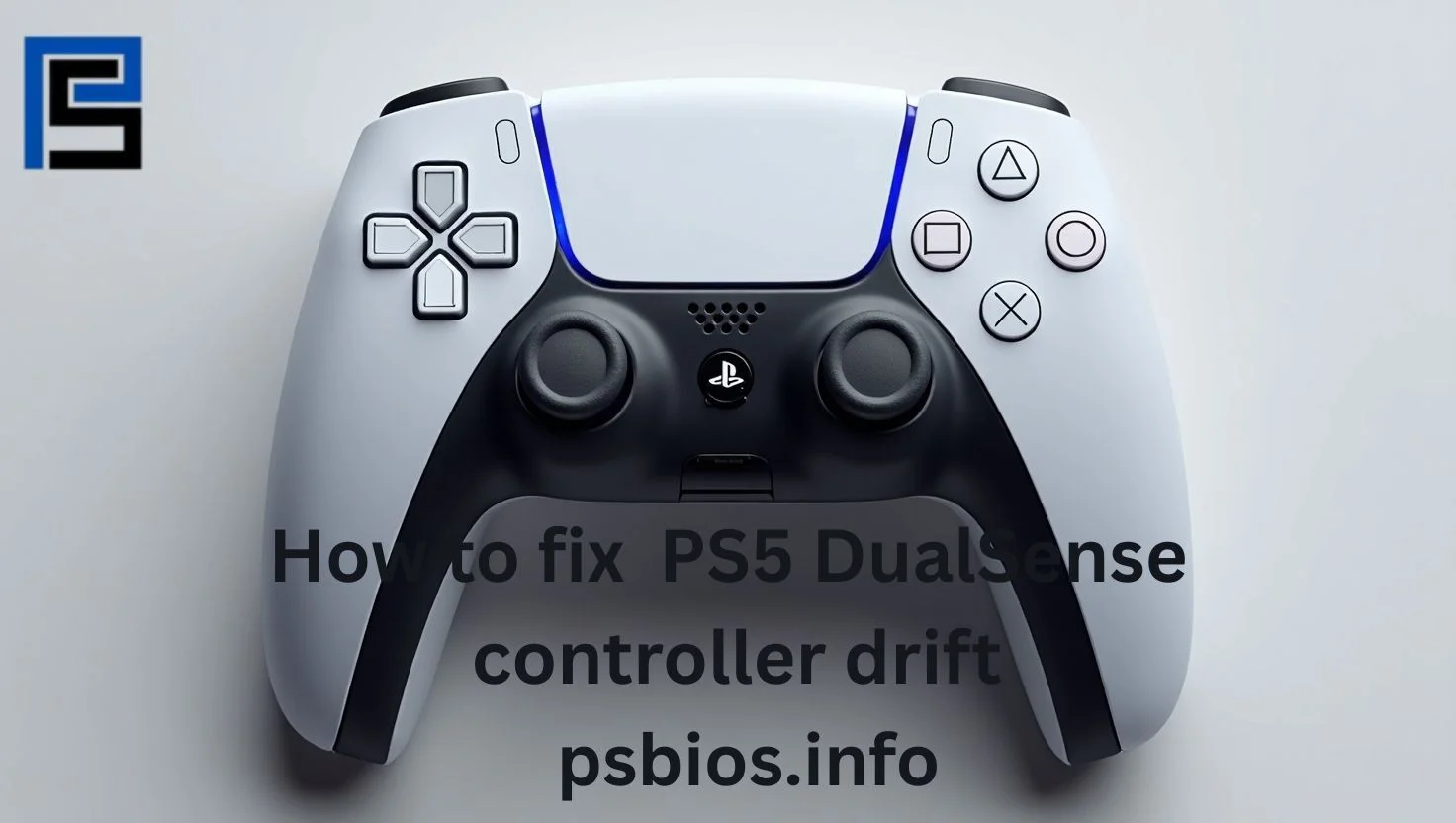
If your PS5™ controller starts spinning in circles or your aim goes off without touching the joystick, you’re experiencing stick drift. This common issue occurs when the thumbsticks register movement even when you’re not touching them. It can be frustrating and throw off your entire gaming session. Fortunately, there are ways to fix it. I’ve personally dealt with this problem and found some effective solutions to get your DualSense™ controller back to normal. In this guide, we’ll explore how to repair stick drift on your PS5 controller and regain full control.
What Causes Stick Drift on a PS5 Controller?
If you notice your controller is drifting, it could be because of a few common reasons. First, dust or debris can sneak into the thumbstick mechanism, causing your controller to register movement even if you’re not touching the joysticks. Over time, the internal components of the joystick may wear out due to normal wear and tear, which can lead to unwanted drift. Additionally, outdated firmware or incorrect controller settings might cause the issue, affecting performance. Physical issues, like water damage or a physical impact on the analog sticks or circuit board, can also lead to this frustrating problem.
How to Repair PS5 Controller Drift
If you’re facing controller drift on your PS5 DualSense, don’t worry—you can often fix it without buying a new one. Sometimes, the solution is as simple as cleaning the joysticks or resetting the controller to refresh its connection with the console. These small fixes can often solve the issue, and they don’t require any technical expertise. Before you think about replacing your controller, it’s worth trying a few easy steps to troubleshoot and potentially fix the drift.
And if you want to download PS Bios, then visit these pages: PS1 and PS2 files.
Clean Around the Analog Sticks
Cleaning your PS5 DualSense controller can be the easiest fix for stick drift. Start by using a can of compressed air to spray around the base of each joystick, which can help remove dust or dirt that might be causing the movement. Then, gently move the joystick in small circles to loosen up any debris. If that doesn’t work, use a cotton swab lightly dampened with isopropyl alcohol to clean around the stick. Make sure to let it dry completely before you reconnect the controller to your console.
Reset your PS5 DualSense controller
If you’re experiencing controller drift, resetting your DualSense controller can often resolve the issue. Here’s how to do it:
- Turn off your PS5 console.
- Disconnect the DualSense controller from the console.
- Locate the reset button inside the small hole on the back of the controller.
- Use a straightened paperclip or pin to press and hold the reset button for 5 seconds.
- Reconnect the controller to the PS5 with a USB-C cable.
- Turn on the PS5 console.
- Press the PS button on the controller to re-establish the connection.
This process resets the controller, potentially eliminating stick drift issues.
Make sure your software is up-to-date
Keeping your PS5 controller’s software up-to-date is crucial for optimal performance and to prevent issues like stick drift. An outdated controller firmware can lead to various problems, including unresponsiveness and erratic behavior. To ensure your controller is running the latest software, follow these steps:
- Connect your controller to the PS5 console using a USB-C cable.
- Navigate to Settings > Accessories > Controllers > Wireless Controller Device Software.
- If an update is available, follow the on-screen instructions to install it.
It’s important to update your PS5 console’s system software, because outdated version can impact on your controller’s performance. To update your console’s software:
- Go to Settings > System > System Software > System Software Update and Settings.
- Select Update System Software, then choose Update Using Internet.
Regularly updating both your controller firmware and PS5 system software ensures smooth gameplay and can help resolve issues like stick drift.
Recalibrate the controller
Unfortunately, PS5 doesn’t have a built-in calibration tool, but you can test and recalibrate your controller through the settings.
Go to Settings > Accessories > Controllers and look for the Test Input Devices section. You’ll be asked to follow some steps to see if any drifting movement still happens. If the issue persists, it’s a good idea to try resetting or cleaning the controller again. Sometimes, multiple attempts are needed to fix the issue completely.
If you’ve followed these steps and still require assistance, we’re always here to support you. Just leave a comment i’ll give you the answer
