
Have you ever tried to run classic PlayStation games on your PC or phone — only to hit a wall because the PS BIOS wasn’t found? That’s because PS BIOS is a critical piece of the puzzle that lets emulators behave like real consoles. In this guide, you’ll learn what it is, why it matters for PlayStation emulation, and how to set it up safely and correctly.
What Is PS BIOS?
The PS BIOS (PlayStation Basic Input/Output System) is a specialized firmware built into PlayStation consoles. It boots the system, checks hardware, and manages interactions between software and hardware.
How It Works
- Startup Booster: Runs first when you power on the console.
- Hardware Checker: Verifies memory, disc drives, and controllers.
- Bridge to Games: Ensures games run as expected.
Why It Matters
Without the PS BIOS, neither real consoles nor emulators can boot or load software. The BIOS controls everything behind the scenes to make games playable.
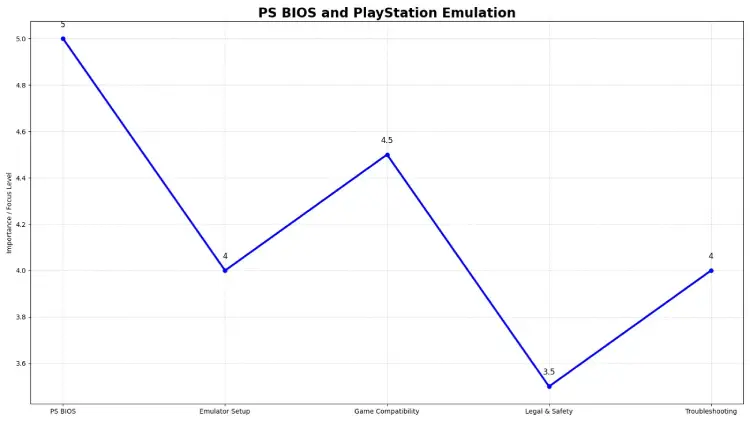
PS BIOS and PlayStation Emulation
Emulation Explained Simply
Emulators are programs that mimic console hardware on other devices. To truly replicate PlayStation behavior, they rely on the BIOS file extracted from original systems.
Popular Emulators That Use PS BIOS
- PCSX2 — PS2 emulation
- DuckStation — PS1 games
- AetherSX2 — Android PS2 emulator
- RetroArch cores
What Happens Without BIOS
Emulators may refuse to start games, display errors like “BIOS not found,” or behave unpredictably. BIOS drives accurate hardware simulation.
Legal & Ethical Guide to PS BIOS Files
Legal Reality
PS BIOS files are copyrighted, meaning sharing or downloading them from random sites can be unlawful.
The Legal Way to Get BIOS
- Extract BIOS directly from a PlayStation console you own.
- Use tools designed for BIOS extraction — not random downloads.
Why Avoid Random Downloads
Some sites host malicious or outdated BIOS files. They may contain ads, malware, or wrong versions. Community sources warn about safety risks.
Versions & Compatibility of PS BIOS
Regional BIOS Differences
PS BIOS files vary by region — NTSC (North America/Japan), PAL (Europe/Australia), and SECAM in some older systems. Using the wrong region can cause errors, glitches, or game crashes. Always match the BIOS to your game’s region.
PS1 vs PS2 BIOS
Different PlayStation generations require specific BIOS files:
| Version | Emulator Requirement |
| PS1 BIOS | DuckStation, ePSXe |
| PS2 BIOS | PCSX2, AetherSX2 |
Use the BIOS that matches your console and game region for smooth emulation.
Firmware vs BIOS (Confusion Clarified)
Older consoles (PS1/PS2) use a simple BIOS, while modern systems (PS3/PS4) use more complex firmware. Only PS1 and PS2 BIOS are needed for emulators; newer consoles require specialized firmware setups.
Step‑by‑Step PS BIOS Setup (Safe & Friendly)
1. Extract BIOS From Console
Turn on your original PlayStation console and use a BIOS extraction tool to copy the file to your PC. Make sure it saves as a .bin and don’t rename or modify it. This ensures your BIOS is authentic and safe.
2. Prepare Emulator
Open your emulator and locate the BIOS or firmware path in settings. Set it to the folder containing your extracted BIOS. Restart the emulator if needed and confirm the BIOS appears in the detected list.
3. Test With Game
Load a compatible game to check if everything boots correctly. If errors appear, double-check the BIOS path and ensure the region matches your game. Testing one game first avoids wider issues.
4. Backup BIOS Files
Save backups in a secure folder or external drive. Use clear names like PS2_SCPH39004.bin to prevent confusion. This protects your setup and saves time if you ever need to reinstall.
Common PS BIOS Errors & Fixes
BIOS Not Found
This error happens when the emulator cannot locate the BIOS file. It’s one of the most common beginner issues.
Fix:
- Double-check the file path in your emulator settings.
- Ensure the BIOS file has the correct extension (.bin or .cue).
- Make sure the BIOS file isn’t inside nested folders — emulators usually need the direct path.
H3: Region Mismatch
Games are often region-specific (NTSC, PAL, or SECAM). Using a BIOS from a different region can cause games to refuse to run or behave incorrectly.
Fix: Match the BIOS region to your game. If unsure, check the game’s regional code and use the corresponding BIOS version.
Corrupted BIOS
If the BIOS file was extracted incorrectly or became corrupted, emulators may crash, freeze, or display glitches.
Fix: Re-extract the BIOS using a reliable tool, and verify the file’s size and integrity. Avoid modifying the BIOS file manually.
Security Warnings from Unknown Sites
Downloading BIOS from random websites can trigger security warnings, malware alerts, or even system infections.
Fix:
- Only use BIOS files extracted from your own PlayStation console.
- Avoid .exe downloads — BIOS files should be .bin or .cue.
- Stick to trusted community tools or official emulator guides for extraction and setup.
Emulator Compatibility Issues
Sometimes, even with the correct BIOS, emulators may still show errors due to version mismatches.
Fix:
- Make sure that your emulator is updated to the new one.
- Check the emulator documentation for compatible BIOS versions.
- Test with a single game first before running your full library.
Safety & Best Practices for PS BIOS Usage
Always Extract, Never Download
Downloading PS BIOS files from random sites can be illegal and risky. Many files are copyrighted or may contain malware. The safest way is to extract the BIOS directly from a PlayStation console you own, ensuring authenticity and avoiding legal trouble.
Keep Backups Organized
After extraction, store BIOS files clearly and securely. Use descriptive names (e.g., PS2_SCPH39004.bin) and keep them in a dedicated folder. Consider a backup copy on an external drive to prevent loss or corruption.
Use Trusted Emulator Docs
Follow the official emulator instructions for setup. This ensures proper BIOS configuration, avoids errors, and maximizes performance. Check documentation for region-specific notes and compatibility tips.
Conclusion
Now you know what PS BIOS is, why it’s essential for PlayStation emulation, how to properly extract and install it, and legal best practices to avoid trouble. Whether you’re using PC or mobile emulators, PS BIOS unlocks the true console experience — safely, correctly, and effectively. If you enjoyed this guide, share it to help other gamers understand PS BIOS too!
Frequently Asked Questions
Q1: What exactly does PS BIOS mean?
A: PS BIOS stands for PlayStation Basic Input/Output System, the firmware that starts up the console and manages hardware functions.
Q2: Is it legal to download PS BIOS online?
A: No — downloading BIOS files without owning the original console can violate copyright laws.
Q3: Do I need a separate BIOS file for each PlayStation model?
A: Yes — PS1 and PS2 BIOS files differ, and correct versions are needed for each emulator.
Q4: PS BIOS not working in emulator — help!
A: Double‑check you used a correctly extracted BIOS file, set proper file paths, and matched regional versions.
Q5: Can modern PS4 or PS5 emulators use PS BIOS?
A: Modern systems use different firmware — classical BIOS is specific to PS1/PS2.
