
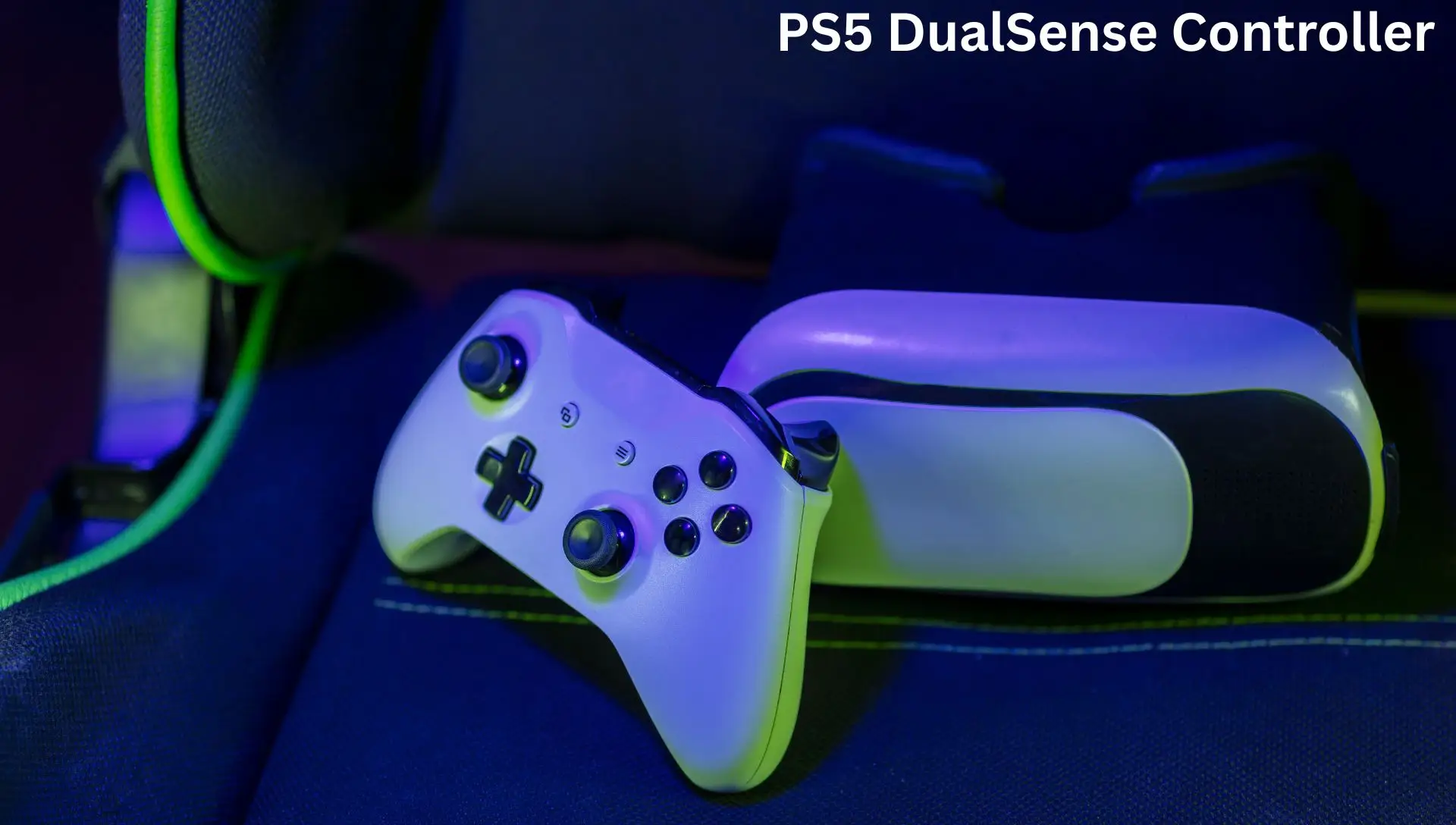
Using a PS5 DualSense controller with an iPhone or iPad brings console‑level controls to mobile games. The DualSense offers “signature PlayStation comfort and next-gen precision” to your gaming experience, which can dramatically improve gameplay in fast-paced titles. Many iOS games – including Apple Arcade games, cloud gaming apps, and shooters like Fortnite or Call of Duty Mobile – support Bluetooth controllers, letting you skip the on-screen controls. With the DualSense paired, you’ll enjoy a more comfortable grip and precise input that touchscreens can’t match.
Requirements
Before you begin pairing, make sure you have:
- PS5 DualSense Wireless Controller: Fully charged and ready. (No adapter needed for Bluetooth mode.)
- iPhone or iPad: Updated to iOS 14.5 / iPadOS 14.5 or later. Apple’s official support requires at least iOS/iPadOS 14.5. (The Apple Store notes that devices on iOS 14.5+ and iPadOS 14.5+ can pair DualSense controllers.)
- Bluetooth enabled: Go to Settings > Bluetooth on your device and turn it on.
- (Optional) Apple TV: If you plan to play on a TV, you can also pair the DualSense with an Apple TV 4K running tvOS 14.5 or later. Once paired, you can AirPlay iPhone or iPad games to the TV for a bigger-screen experience.
No special software or accessories are needed beyond a supported OS and Bluetooth connectivity.
Pairing via Bluetooth
Follow these steps to pair your DualSense controller wirelessly:
- Activate pairing mode on the controller: With the controller off or on, press and hold the PS button (the PlayStation logo) and the Create button (left of the touchpad) simultaneously for a few seconds. The light bar will begin flashing rapidly, indicating the controller is in Bluetooth pairing mode.
- Open Bluetooth on your iPhone/iPad: On the device, go to Settings > Bluetooth. Make sure Bluetooth is turned on. Wait a moment for the list of nearby devices to refresh.
- Select the controller: In the list of “Other Devices,” tap “DualSense Wireless Controller”. It may just say DualSense or PS5 Controller. When you select it, pairing will begin. (If prompted, confirm any dialog.)
- Confirm the connection: The controller’s light bar will blink and then settle on a solid glow once the pairing is successful. In your Bluetooth settings you should see the controller listed as Connected.
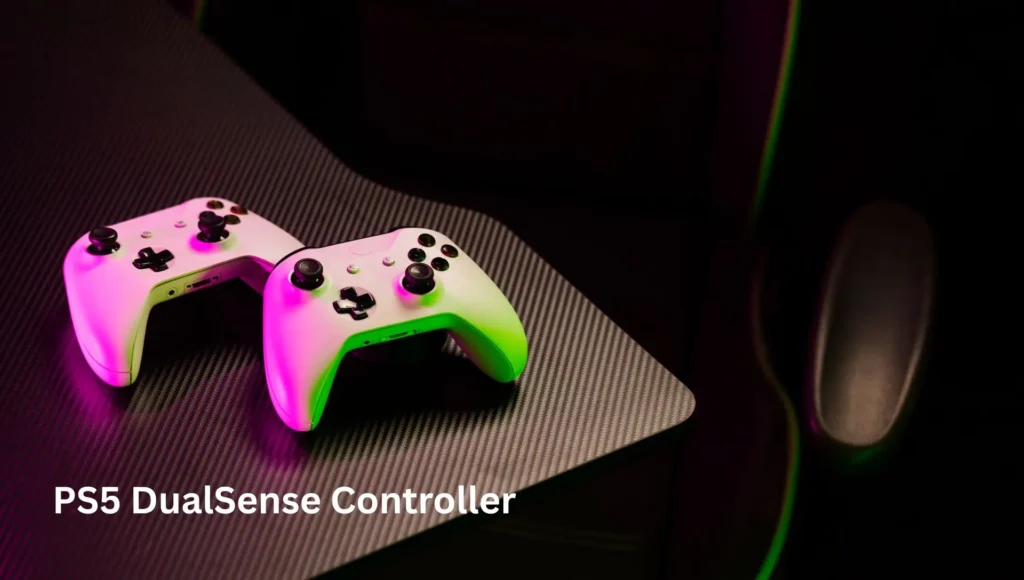
After these steps, the DualSense is paired to your device. You can exit Settings and the controller will remain connected for use in games.
Testing the Controller
To verify the connection, launch any game or app that supports controllers (for example, an Apple Arcade title or the PS Remote Play app). The PS5 controller’s buttons and sticks should now control the game automatically. You may see button prompts change from touch icons to PS5 controller icons. If nothing happens, try this:
- Press the PS button: Sometimes after pairing, you must press the PS button once to finalize the connection. The player indicator lights on the controller should light up, showing it’s active.
- Check game compatibility: Not all games support controllers. Make sure the game you’re using has controller support. Most modern iOS games, especially Apple Arcade and streaming services like PS Remote Play, are compatible.
Once connected, you can customize controls if needed. On iOS/iPadOS, go to Settings > General > Game Controller to remap buttons or create profiles for specific games.
Troubleshooting
If you run into issues, try these tips:
- Controller not appearing in Bluetooth: Double-check you’re in pairing mode. The light bar must be flashing. If not flashing, turn off the controller by holding the PS button until it shuts off, then repeat step 1. Ensure the controller isn’t already paired to another device (you may need to unpair it there first).
- Controller paired but unresponsive: Ensure the game supports a controller. If it does and it’s still not working, press the PS button on the controller to wake it and try again. You can also try disconnecting and re-pairing via Bluetooth settings.
- Bluetooth interference or lag: Reduce other Bluetooth connections on your iPhone/iPad. Excess devices can interfere with the signal. Move closer to the iPhone/iPad to ensure a strong connection.
- Update software: Make sure your iPhone/iPad is on the latest iOS/iPadOS version, and check for any DualSense firmware updates (using a PS5 or PlayStation Accessories app on a PC/Mac). Updating can fix compatibility issues.
- Reset and re-pair: In Settings > Bluetooth, tap the ⓘ next to “DualSense Wireless Controller” and choose Forget This Device. Then repeat the pairing process from step 1.
Following these steps and tips should solve most connection problems.
Using the Controller in Games
Once connected, the DualSense works automatically with any iOS game that supports external controllers. Popular game libraries – including Apple Arcade and third-party titles – are fully playable with the PS5 controller. For example, you can play Apple Arcade games, stream PC/console games via PS Remote Play, or use services like Xbox Cloud Gaming with the DualSense.
Most games use the controller’s buttons by default, but if needed, you can customize button mapping in iOS. To do this, go to Settings > General > Game Controller, tap your controller, and customize Default Controls or add a specific game profile. This lets you remap buttons, adjust stick sensitivity, or set up gestures for different apps.
Connecting to an iPad
The process for iPad is identical to iPhone. Just ensure your iPad is running iPadOS 14.5 or later. Then follow the same pairing steps above (PS + Create on the controller, then select it in Settings > Bluetooth). After pairing, your iPad will treat the DualSense just like an iPhone – you can play any compatible games with the controller.
Playing on Apple TV or via PS Remote Play
Apple TV: The PS5 DualSense also pairs with Apple TV 4K (running tvOS 14.5 or later). To use it, put the controller in pairing mode, go to Settings > Remotes and Devices > Bluetooth on the Apple TV, and select the controller. Once connected, you can play Apple TV games or use AirPlay from your iPhone/iPad to stream games to the TV and control them with the DualSense. Apple TV 4K supports up to four Bluetooth controllers simultaneously.
PS Remote Play: You can also stream your PS5/PS4 console games to your iPhone or iPad using Sony’s PS Remote Play app. With the DualSense paired to your mobile device, the app lets you play console games on the go. According to Apple’s product page, “Stream compatible games from your PS4 or PS5 console to your iPad, iPhone, or Mac and play using the PS Remote Play App”. (The Remote Play app requires a PlayStation Network account and an internet connection.)
Wired Connection (Optional)
If you prefer a wired setup or have trouble with Bluetooth, you can connect the DualSense via cable. For iPhone 15 (USB-C): use a USB-C to USB-C cable. For older iPhones (Lightning port): use a USB-C to Lightning cable. When you plug the controller into the device, it should pair automatically as a wired controller. (Apple notes that DualSense controllers “automatically pair and connect when plugged directly into your Apple device with a USB-C cable that supports data and charging”.) One thing to note: on some setups, audio may route through the controller’s jack, so you might need to adjust your sound output settings if you’re using wired audio.
Conclusion
Pairing a PS5 DualSense controller with your iPhone or iPad is a quick process that can greatly improve your mobile gaming. With just a few steps – put the controller in pairing mode, enable Bluetooth on your device, and select the controller from the list – you’ll be in the game with better precision and comfort. Games that support controllers (from Apple Arcade titles to streaming apps) will immediately work with the DualSense. Whether you’re competing in fast-paced shooters or enjoying your favorite casual games, the PS5 controller gives you console-quality control on your mobile screen.
Sources: Apple and PlayStation support resources provide official instructions and compatibility details, ensuring these steps are accurate and up-to-date.
