
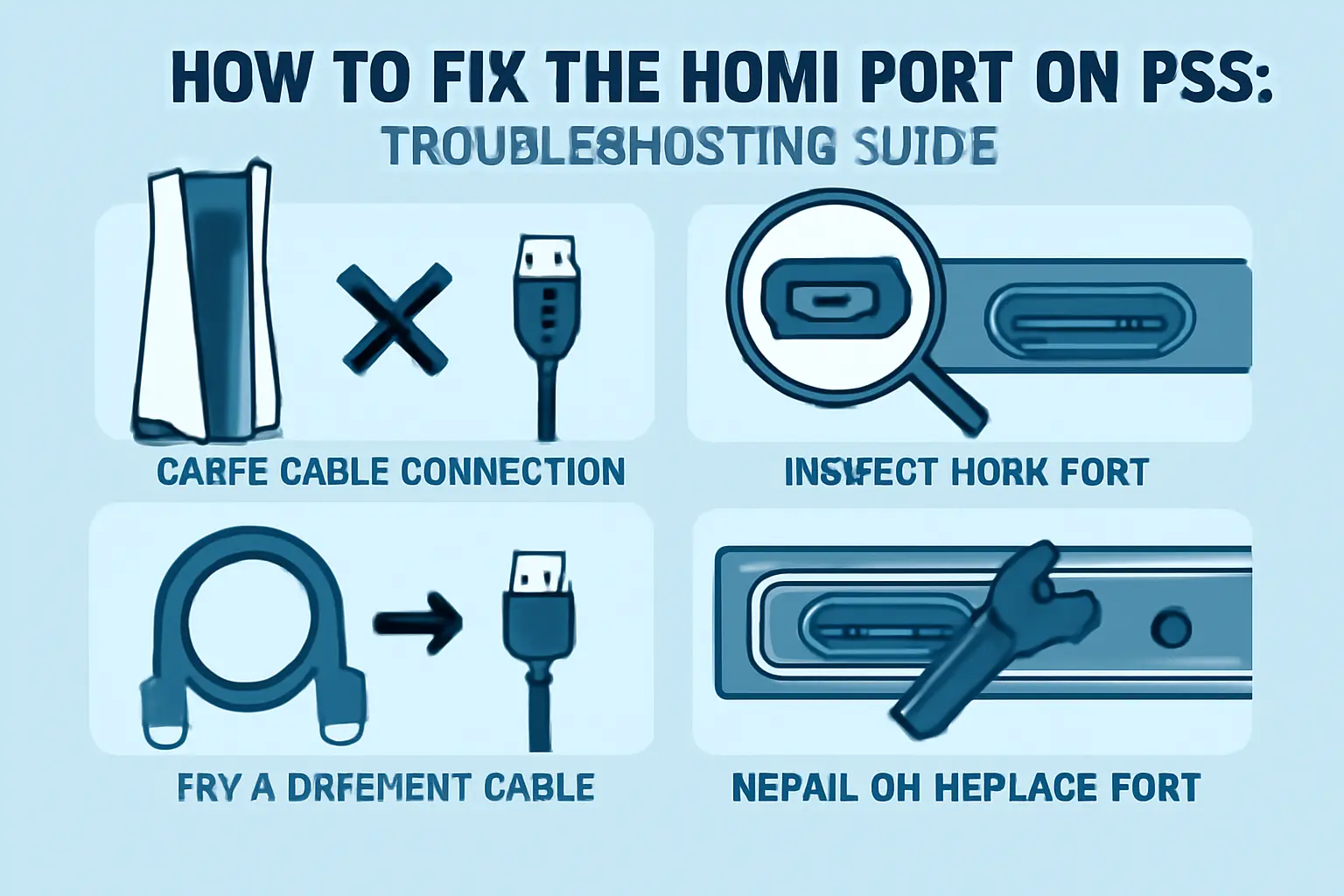
How to Fix the HDMI Port on PS5 When you grab your controller in hand and you’re ready to play your favorite game, nothing’s more frustrating than a black screen with no sound or signal. The culprit behind this problem is often your PS5’s HDMI port – that small slot responsible for connecting your console to your TV. When this connection fails, your entire system becomes practically useless for entertainment.
Here’s the good news, though: you won’t always require a professional technician to resolve this frustrating situation. In numerous cases, you can successfully figure out exactly what’s gone wrong and fix the issue yourself, or at least understand when it’s time to seek professional help. This detailed guide breaks down each possible reason why your gaming system might stop working and teaches you to spot damage before it worsens.
We’ll explore which tools you’ll need for repairs and demonstrate the safest ways to properly clean or completely replace your damaged port. Whether you own a brand new console or one that’s a few years old, this frustrating issue happens surprisingly often. Problems like dust buildup, accidental tugs on cables, poor connections, or manufacturing factory defects frequently cause HDMI problems.
Remember that not every black screen automatically indicates a broken port – sometimes the cable, your TV, or incorrect settings create similar symptoms. We’ll tackle this challenge step by step to ensure you don’t waste time guessing at solutions. Our approach covers systematic troubleshooting, DIY repairs, and professional replacements to restore your gaming experience.
What Causes HDMI Port Problems on a PS5?
Several main reasons can cause your PS5 to stop working properly when the HDMI port develops issues. Understanding these causes is the first step before learning how to fix the HDMI Port on PS5 effectively.
Physical damage: Forceful disconnection, dropping the gaming console, or pulling the cable too hard can bend or break the HDMI port pins. This is one of the most common reasons users search for How to Fix the HDMI Port on PS5.
Debris and dust: Tiny particles like dust, lint, or dirt can build up inside the port and block the connection completely. Over time, this can interrupt the signal and cause display issues.
Worn-out cable: Not every HDMI cable is designed for long-term heavy use. A damaged or low-quality cable may fail to transmit signals properly, making it seem like the port itself is faulty.
Internal board issues: In some cases, the problem goes deeper into the PS5 motherboard. If internal circuits connected to the HDMI port are damaged, simple fixes may not work.
Before attempting any repair, it’s absolutely important to understand the root cause. Proper diagnosis makes it easier to apply the correct method when learning how to fix the HDMI Port on PS5.
How to Tell If the How to Fix the HDMI Port on PS5 Is Damaged
Figuring out whether your HDMI port is damaged is a critical step in understanding how to fix the HDMI Port on PS5.
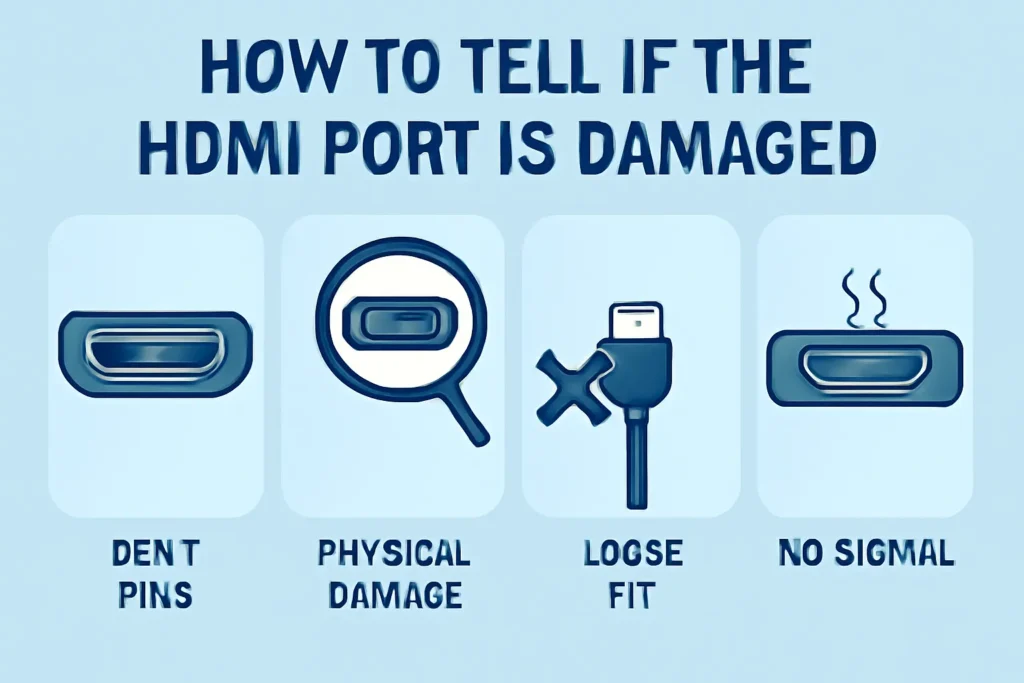
Start by checking if your PS5 displays anything on the screen after turning it on. A persistent black screen or a “No Signal” message is often the first sign of HDMI port issues.
Next, inspect the port physically. Look closely for:
- Bent pins
- Cracks around the port
- Signs of corrosion or dirt buildup
If your HDMI cable feels loose or doesn’t stay firmly connected, this could indicate internal connector damage. This is a strong sign that you may need a proper repair approach for How to Fix the HDMI Port on PS5.
Other warning signs include:
- Flickering screen or signal drops
- No audio or video output
- Intermittent connection issues
To rule out other causes, always test:
- A different HDMI cable
- Another TV or monitor
If the issue continues, the problem is likely within the port itself. Checking HDMI cable pins for wear or damage can also help prevent further issues. When these symptoms become severe, seeking professional repair is often the safest and most effective solution while addressing how to fix the HDMI Port on PS5.
These First: Basic Troubleshooting Steps
Before opening your PS5 or heading to any repair shop, try this systematic approach first. These steps are simple, safe, and often fix common HDMI issues without needing technical repairs.
1. Switch the HDMI Cable
Start with a different HDMI 2.1 cable or at least an HDMI 2.0 version, since cheap cables often cause signal issues that mimic port problems. A faulty or low-quality cable is one of the most common reasons behind a PS5 no signal issue.
2. Check the TV Input
Always make sure your TV is set to the correct HDMI input, as many TVs auto-switch while others don’t perform this function automatically. Manually selecting the correct input can instantly restore your display.
3. Try a Different HDMI Port on the TV
Sometimes, your TV port turns out to be the actual problem rather than your PS5 console. Switching to another HDMI port helps rule out whether the issue is with your TV instead of the console.
4. Test the PS5 on Another TV
This will help confirm whether your console represents the real problem or something else entirely. If the PS5 works on another display, your original TV or HDMI port is likely faulty.
When these troubleshooting methods fail, and you continue experiencing a black screen or no signal message, proceed to examine the port itself for potential hardware malfunctions.
Method 1: Cleaning the HDMI Port
Sometimes, a little cleaning effectively solves the problem without any complex repairs needed.
What You Need:
- A can of compressed air for cleaning
- A toothpick or a small soft brush for detailed work
- A reliable flashlight for proper visibility
Steps:
- Power off your PS5 and unplug everything from the system completely.
- Use the flashlight to look inside the HDMI port and assess the situation.
- Blow air into the port to remove dust and loose particles effectively.
- Carefully clean the interior with your brush or toothpick, while staying away from metal tools that might create further harm.
If debris was the main issue, this simple process should fix your problem immediately. Plug everything back in properly and test again to verify the connection works.
Method 2: Check for Loose Connection Inside
If your HDMI port feels loose, it could be a broken solder joint inside your PS5, causing connectivity problems.
This part gets trickier and may need a qualified technician, but here’s what it involves:
- Opening the PS5 shell carefully
- Inspecting where the HDMI port connects to the mainboard assembly
- Checking for cracked solder or lifted pins that have come loose over time
You’ll need tools like a complete screwdriver set, anti-static gloves, and considerable patience for this delicate work. If you’re unsure about your technical abilities, skip this method and go to Method 4 instead.
Method 3: Replacing the HDMI Port (Advanced DIY)
When your port is clearly broken with pins that are bent or missing entirely, it must be replaced completely.
What You Need:
- A replacement HDMI port that’s PS5-specific
- Soldering iron with a fine tip
- Desoldering the pump or wick for removal
- Screwdrivers and precision tweezers
Steps (Simplified):
- Carefully take your PS5 apart following proper procedures
- Remove the motherboard from its housing
- Desolder the broken port completely
- Clean the area thoroughly
- Solder the new port in place with precision
- Reassemble and test everything
This job requires steady hands and solid soldering skills to complete successfully. If you’re not familiar with advanced electronics work, it’s easy to make things worse than they already are. In that case, jump to the next method for professional assistance.
Method 4: Take It to a Repair Center
If DIY isn’t your thing, don’t worry about attempting complex repairs yourself. A trusted repair shop can replace the port professionally while you wait.
Repair costs typically vary between $80 to $150 based on your geographic area and the severity of damage level assessment.
Look for repair centers that specialize in PlayStation consoles specifically for better results. Check reviews carefully and make sure they offer a warranty on their fix before committing. This option takes the pressure off and proves safer than attempting a replacement yourself when you’re unsure about the process.
How to Prevent HDMI Port Damage in the Future
Smart prevention costs much less than expensive repair work later on. Here’s how to protect your HDMI port:
- Avoid frequent plugging and unplugging of cables unnecessarily
- Don’t yank the cable sideways when disconnecting, as this stresses the port connections
- Use an HDMI adapter or extender if you move your PS5 often between different locations
- Always keep your PS5 on a stable surface to prevent accidental falls or impacts
Handle the port with care, as it’s a fragile component of your console designed for gentle use rather than forceful manipulation.
When It’s Not the Port: Other Reasons for No Signal
Even when your HDMI port is functioning properly, your screen may remain blank due to various other issues. Here’s what else to check systematically:
- Safe Mode Check: To boot into Safe Mode, press and hold the power button for about 7 seconds until you hear a second beep. After that, connect your controller using a USB cable and check if Safe Mode launches successfully.
- Resolution Reset: Within Safe Mode, choose Change Video Output to reset your resolution settings back to defaults.
- Firmware Problems: If your console’s system software becomes corrupt, you’ll need to reinstall via USB using a recovery file from PlayStation’s official site.
HDCP Settings: Turn off HDCP found under system settings if your monitor doesn’t support this copy protection feature.
Final Thoughts
The HDMI port remains one of the most fragile parts of any PS5 system. When your screen shows no signal, don’t panic immediately about expensive repairs. Start with basic checks like switching cables and cleaning the port thoroughly first.
If there’s obvious physical damage, you can either replace the port yourself if you have the experience or take it to a repair shop for professional service. Most problems come from rough handling or loose connections that develop over time. Using an extender and handling the connection with care can help prevent this problem from happening again.
When the port isn’t the problem, dig into settings like Safe Mode and display output options instead. A lot of gamers manage to resolve signal problems without ever needing to open up their console.
