
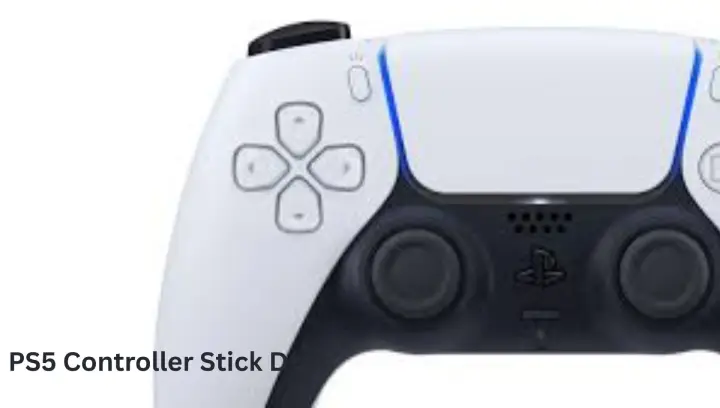
PS5 stick drift happens when the Dual Sense’s analog sticks register movement without any touch, causing characters or cursors to wander on their own. Gamers often see subtle symptoms at first – like a character slowly creeping forward or the camera drifting – which can become very obvious in fast-paced games. This usually stems from dirt or wear inside the stick mechanism: tiny dust particles under the joystick can confuse the sensors, and worn potentiometers (the parts that track stick position) can send wrong signals. Even firmware glitches or damage from drops can trigger phantom stick inputs. The good news is that many fixes are simple – cleaning, resetting, and software tweaks often restore proper function without buying a new PS5 Controller Stick Drift.
Diagnosing Stick Drift
To confirm stick drift, try a quick in-game test: leave both sticks untouched and watch the screen. If the in-game camera or cursor moves by itself, that’s drift. On PS5 you can also put the controller flat on a table – a healthy DualSense shouldn’t register any stick movement when idle. (On PC, you could use the Windows Game Controller settings to test if a stick position is off-center, but the in-console test is usually enough.) In short, any unexplained motion while your hands are off the sticks means it’s time to fix drift.
Why Stick Drift Happens
Common causes of PS5 stick drift include:
- Dust and debris: Tiny particles from your environment (or even skin oils, food crumbs, etc.) can slip under the stick cover and foul the sensors. Over time this gunk makes the controller “think” the stick is being pushed. Nacon’s repair guide notes that “accumulation of dust and debris” under the joysticks is a primary drift cause.
- Wear and tear: Every time you play, you put mechanical strain on the DualSense’s potentiometers. After heavy use, these parts can deteriorate and create a dead zone or false signals. As one guide explains, analog sticks undergo constant motion that can wear down their internal mechanisms. When the centering parts wear out, the controller may read a slight tilt even when the stick is neutral.
- Firmware or software glitches: Occasionally a bad controller update or firmware bug will cause drift-like behavior. (Sony has released DualSense firmware updates in the past that improved stick accuracy.) If the controller’s software is outdated or corrupted, it might misinterpret stick position.
- Physical damage: Dropping the controller or hitting the sticks hard can knock the components out of alignment. Even if you don’t see cracks, an impact can bend or displace parts under the stick, causing it to lean in one direction. In short, a harsh drop can unseat the internal sensors so the controller reports movement when there is none.
DIY Fixes and Solutions
Clean the Analog Sticks
A dirty stick base is a very common drift culprit. To clean it, power off the DualSense and gently rotate each stick while using a cotton swab with 70% (or higher) isopropyl alcohol. Dip the swab (not dripping wet) and rub around the base of the joystick where it meets the controller body. This dissolves grime that can bridge the stick’s contacts. You can also use a can of compressed air to blow out any loose dust around the sticks before swabbing. Let the controller dry completely (5–10 minutes) before turning it back on. In many cases, this simple cleaning fixes light drift for free.
Reset the Controller
If cleaning didn’t work, try a factory reset of the DualSense. First turn off your PS5. On the back of the controller there’s a small reset hole near the Sony logo. Insert a toothpick or straightened paperclip and press the button inside for about 5 seconds. Then plug the controller into the PS5 with a USB cable and press the PS button to re-pair it. This reset can clear minor firmware glitches that cause drift. (Many users report that a quick reset sometimes makes the sticks center properly again.)
Update Firmware and System Software
Ensure your controller’s and console’s software are up to date. Plug the DualSense into the PS5 via USB and turn on the console; the PS5 will automatically check for DualSense firmware updates and prompt you to install any available ones. Also, go to Settings > System > System Software > System Software Update on the PS5 and install any pending system updates. Keeping the DualSense firmware current fixes known bugs and can improve stick calibration. In short, updating both the controller and console often solves unexplained drift issues without any hardware work.
Calibrate Deadzones or Use Software Settings
On PC or newer DualSense models you can also adjust deadzones to mask minor drift. For example, on a DualSense Edge controller you can create a custom profile and increase the joystick deadzone setting – this tells the controller to ignore small stick inputs so that slight drift stops affecting gameplay. In games (on PS5 or PC) you can often raise the deadzone in the controller or gamepad settings as a workaround. As one tech guide notes, “increasing the dead zone slightly can help mask minor stick drift issues”. This doesn’t fix the hardware, but it can give a quick relief if the drift is very light.
Manual Stick Realignment
Some users have had success with a “press-and-rotate” technique before opening the controller. For about 10–15 seconds, press firmly down on the drifting stick (as if clicking it) and hold. Then rotate the stick clockwise for 10 seconds, and rotate counterclockwise for 10 seconds, and press again. The idea is that this compresses and re-centers the internal spring and contacts. This trick can occasionally realign the potentiometer. It’s a low-effort step that may help align worn parts without disassembly.
Advanced Repairs
Replace the Analog Stick Module
If drift persists, the internal analog modules may be too worn and need replacement. This is an advanced DIY fix. You would buy DualSense-compatible joystick modules (around $10–$20), carefully open the controller (remove the Phillips screws on the back), and unsolder the old stick module from the circuit board. Then solder the new one in place. Reassemble the controller and test. Warning: Opening a standard DualSense (non-Edge model) voids the warranty and requires soldering skills. As Lifewire emphasizes, only the DualSense Edge is truly designed for user stick swaps. If you have the Edge, follow Sony’s official stick-replacement guide. Otherwise, consider doing this only if you are comfortable with electronics and understand you could damage the controller.
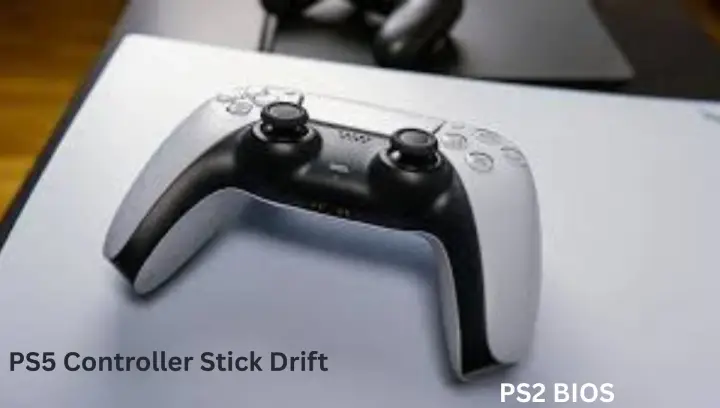
Professional Repair and Warranty
If you prefer not to DIY, check your warranty first. Sony provides a 1-year warranty on new DualSense controllers. If your controller is still covered, contact PlayStation Support to start a warranty repair – they may fix or replace the controller at no cost. If it’s out of warranty, Sony’s official repair service typically charges around $30–$50 for fixes. Local gaming repair shops can also perform analog stick repairs (often for a similar fee) and may even give you a loaner controller while yours is serviced. In summary, under warranty go with Sony’s service; if not, get a quote from a trusted repair shop or request an out-of-warranty fix from Sony.
Preventing Future Drift
- Clean regularly. Every few weeks or months, use a dry cloth or cotton swab to clean around the sticks. Even a light monthly wipe with isopropyl alcohol can prevent buildup.
- Store it safely. Keep the controller in a dust-free place (like a drawer or case) when not in use.
- Wash your hands before gaming. Oils and residue from your hands can transfer to the controller. Clean hands mean less gunk under the sticks.
- Avoid eating while playing. Crumbs or spills can quickly get into the gaps around buttons and sticks – try to game with clean hands only.
With some routine care (and by trying the fixes above at the first sign of drift), many DualSense stick problems can be avoided or corrected. As tech guides conclude, most PS5 stick drift stems from simple issues like dirt or calibration, so start with the easiest solutions (cleaning and resets). If those don’t work and the controller is out of warranty, weigh the repair cost versus replacing it. A brand-new DualSense costs about $75 in the US, so if repairs approach half that price or more, it might make sense to buy new. In any case, following these steps should help you regain precise control of your games without wasting money – and get you back to smooth gaming in no time.

1 thought on “PS5 Controller Stick Drift: Causes and Fixes”
This guide is super helpful! It clearly explains why my DualSense sticks drift and offers practical fixes, from simple cleaning to advanced repairs. Great resource for anyone experiencing stick issues!