

How to Connect PS5 Controller to Phone Easily Gaming on your phone has evolved tremendously, and using a PS5 controller can transform your mobile gaming experience into something much smoother and more fun. The DualSense controller offers excellent compatibility with modern smartphones, providing console-like gameplay right in your hands. This comprehensive guide will walk you through the steps to pair your controller with both Android and iPhone models.
How to Connect PS5 Controller to Phone Easily
Bluetooth technology makes the connection process relatively straightforward, though you’ll need Bluetooth 4.0 or higher support on your device. Most modern phones running updated operating system versions can handle external controllers without any issues. Whether you want better control for action games or simply prefer physical buttons over touchscreen controls, connecting your PS5 controller opens up a world of enhanced mobile gaming possibilities.
How to Connect PS5 Controller to Android Phone Easily
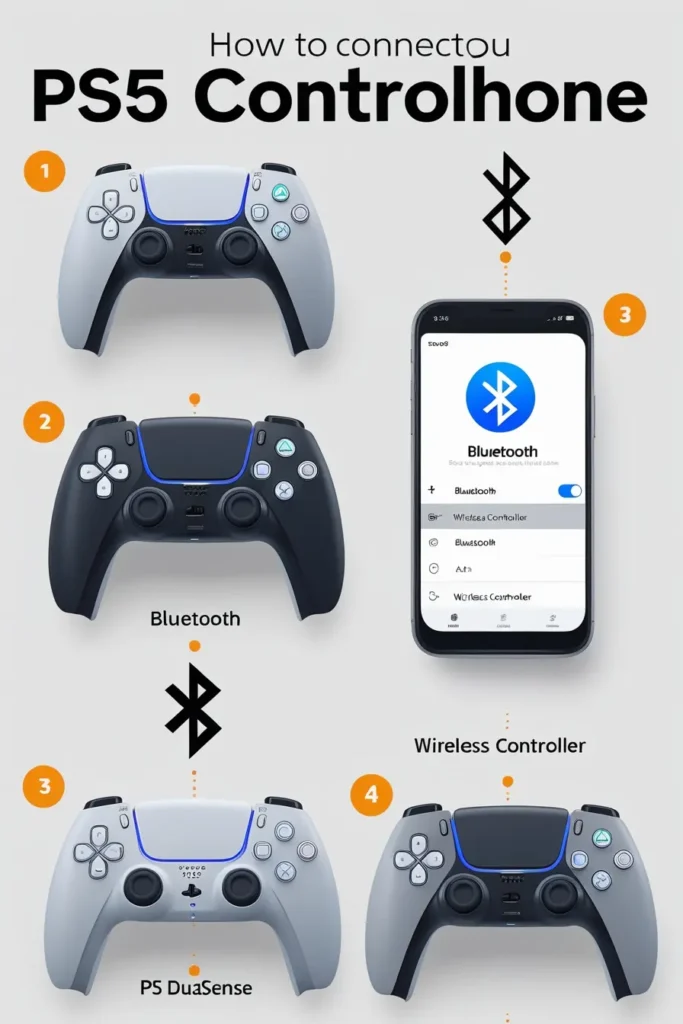
Connecting your PS5 controller to your Android phone through Bluetooth is a straightforward process that requires following specific steps. First, you need to put your DualSense controller into pairing mode by holding both the PS button and Create button simultaneously until the light bar starts flashing blue. This indicates your controller is ready to be discovered by nearby devices.
- Press and hold the PS button and Create button (located beside the D-pad) simultaneously on your controller.
- Continue holding both buttons until the light bar begins flashing, indicating the controller has entered pairing mode.
- Navigate to Settings > Bluetooth on your Android device.
- Look for “Wireless Controller” in the list of available devices and wait for it to appear.
- Select “Wireless Controller” to initiate pairing.
- When successfully connected, the light bar will display a steady light, confirming your controller is ready for compatible games.
Your Android version should be Android 10 or higher to properly support external controllers like the DualSense. Test your connection by opening supported games and checking if the controller buttons respond correctly in the game settings. You can navigate and play games seamlessly once everything is working properly.
If you encounter issues during this process, try turning off your phone’s Bluetooth and restart both devices. Sometimes you may need to reset the controller using a paperclip to press the small button located back near the L2 button. This usually resolves most connectivity problems and allows for a fresh pairing attempt.
How to Disconnect the PS5 Controller from Your Phone
To disconnect your PS5 controller from your phone, you’ll need to access your Bluetooth settings and either Forget or Disconnect the device completely.
- Navigate to your phone’s Bluetooth settings and select “Forget” or “Disconnect” beside the controller’s name.
- For Android devices: Go to Settings > Bluetooth, locate “Wireless Controller,” and tap “Disconnect” or “Forget.”
- For iPhone users: Go to Settings > Bluetooth, find “DualSense Wireless Controller,” tap the blue “i” icon, then select “Forget This Device.”
When you want to reconnect your controller to your console, simply plug it into your PS5 using a USB cable and press the PS button. Your PlayStation will recognize the controller immediately without needing to re-pair it. However, if you plan to switch between devices regularly, you might want to avoid completely forgetting the pairing and instead just selecting Disconnect when necessary.
For short-term disconnection when switching between devices, simply turning off Bluetooth on your phone disabled the connection temporarily. This prevents old devices from trying to auto-connect when you don’t want them to.
if you interested in PS5 Guide for PS5 GAMES
Troubleshooting PS5 Controller Connection Issues
When your PS5 controller won’t connect to your phone, several common problems might be causing the issue, but most have simple solutions. Regular software updates and managing your Bluetooth devices properly can prevent many connectivity headaches before they start.
- Phone doesn’t detect controller: Ensure your device supports Bluetooth 4.0 or higher and runs updated software like Android 10+ or iOS 14.5+. Older phones might lack the necessary Bluetooth protocols for modern gaming controllers.
- Controller not entering pairing mode: Hold both PS and Create buttons simultaneously until the light bar flashes blue consistently. If this doesn’t work, try resetting the controller using a paperclip to press the small reset button.
- Already connected to another device: Disconnect the controller from any old device first, as DualSense controllers can only maintain one active Bluetooth connection at a time. Check for other devices nearby that might be interfering.
- Controller paired but not working in games: Not all mobile games support external controllers natively. Test different game titles to verify support, and check individual game settings for controller configuration options.
- Bluetooth keeps disconnecting: Try restarting both your phone and controller, then updating your device’s software to the latest version. These steps usually solve persistent connectivity issues.
Most pairing problems resolve by using these basic fixes, but if nothing works, consult your PlayStation support page or your phone support page for additional help with device-specific troubleshooting steps.
Conclusion
Connecting your PS5 controller to your phone takes just five minutes once you understand the Bluetooth pairing process and follow these simple steps. This setup dramatically improves your mobile games experience by providing precise controls that rival traditional console gaming. Both Android and iPhone users can enjoy this enhanced controller setup using essentially the same method.
The key to success lies in properly activating pairing mode and selecting the correct device from your phone’s Bluetooth menu. Most modern phones naturally support this type of connection, especially devices running Android 10+ or iOS 14.5+ operating systems.
