
How to Get More Storage on PS5 is a question many gamers face as modern titles continue to grow in size. With only about 667 GB of usable internal storage, the PlayStation 5 can quickly run out of space—especially if you enjoy having multiple games, updates, and saved data ready to go.
Thankfully, there are several effective solutions that let you expand your PS5’s storage without deleting your favorite games or relying on slow USB drives. Whether you’re looking to install an internal M.2 SSD, offload older games to external storage, or use cloud saves for better space management, this guide walks you through all the best ways to maximize your storage and keep your gaming uninterrupted And for PSBIOS.
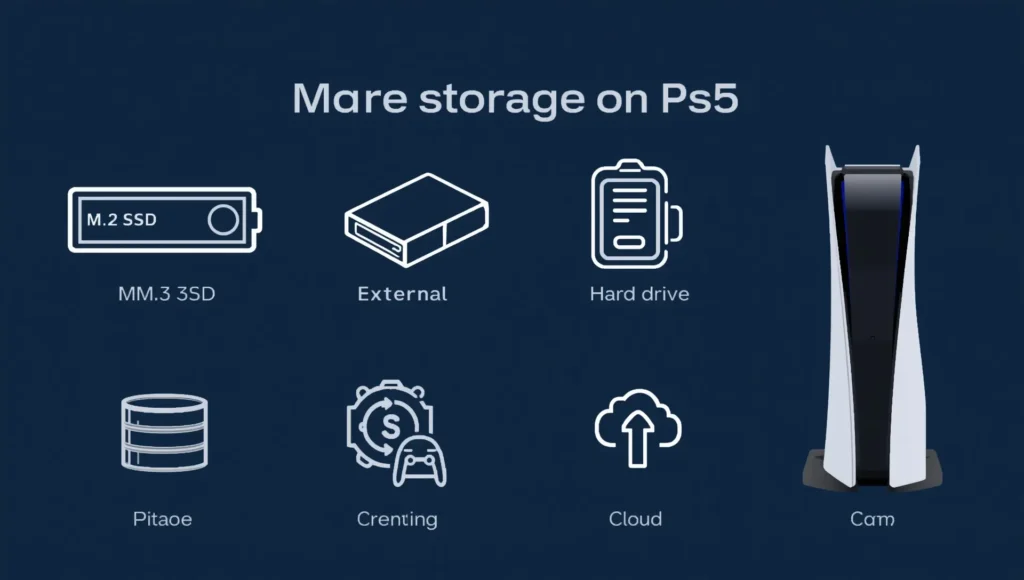
Add an Internal M.2 SSD to Your PS5
The most powerful and seamless way to boost your PS5’s storage is by installing an internal M.2 NVMe SSD. Sony built a dedicated expansion slot for this purpose, allowing users to increase storage without relying on external devices.
Once installed, the M.2 SSD works just like the console’s built-in storage, supporting game installs, updates, and full-speed performance.
What You Need for Installation
- A PCIe Gen4 M.2 NVMe SSD (e.g., WD Black SN850, Samsung 980 Pro)
- A heatsink (either pre-installed or attached manually)
- A Phillips screwdriver
- Latest PS5 firmware
After installation, the system will prompt you to format the drive. You can then freely move games between your internal and extended storage. Be sure to choose a compatible SSD and verify that a heatsink is present to avoid overheating.
Use an External Hard Drive or SSD for PS4 Games
External storage is an excellent solution for managing space—especially if you still enjoy your PS4 library. While PS5 games can’t run directly from external drives, PS4 titles can, allowing you to offload older games and free up internal space.
You can also store—but not play—PS5 games on the external drive, moving them back to the internal SSD when needed.
Benefits of External Storage for PS4 Games
- Keeps internal storage focused on PS5 titles
- Allows easy plug-and-play access across multiple consoles
- Great for storing large PS4 game libraries
Both HDDs and external SSDs are supported, with USB 3.0 drives up to 8TB in size. SSDs will offer faster load times but aren’t required for PS4 games.
How to Get More Storage on PS5 Without Deleting Games
You don’t have to sacrifice your game library to create more space. Options like adding an M.2 SSD or using external storage for older titles allow you to maintain access to all your games.
For example, you can install a compatible SSD and continue playing without deleting anything. Or, transfer inactive games to an external drive and move them back when you’re ready to play.
These methods let you manage storage dynamically without losing progress or spending time redownloading content.
If you Interested in more Guide for PS5 games.
How to Get More Storage on PS5 Without USB
If you’d prefer not to use USB storage devices, an internal SSD is your best bet. These drives connect directly to the PS5’s internal slot and integrate fully with the system, offering speed and performance without the clutter of external hardware.
Another option is PlayStation Plus cloud storage. While this won’t increase your total space, it allows you to offload save data safely, giving you more control over what stays on your console.
Advantages of Non-USB Storage Options
- Keeps your setup neat and device-free
- Leaves USB ports available for accessories
- Provides high-speed storage and cloud safety
How to Get More Storage on PS5 Without Hard Drive
If you want to avoid using traditional hard drives, upgrading with an M.2 SSD is your best alternative. These drives provide faster performance and integrate directly into your console.
Cloud storage is another useful option—especially for backing up saved data. While it doesn’t add storage, it allows you to delete and reinstall games without losing your progress.
When to Skip the Hard Drive Option
- You mainly play PS5 games
- You prefer a clean, cable-free setup
- You have reliable internet access for cloud backups
In these cases, SSD upgrades or cloud solutions are more effective than relying on external HDDs.
Manage Game Data Smartly for Extra Space
Effective storage management can free up space without needing hardware upgrades. Use your console’s storage settings to identify large or unnecessary files—like extra language packs, unused modes, or game features you don’t use.
Many PS5 games let you remove specific parts of a game (like campaign or multiplayer), giving you more control over what stays installed.
Also, don’t forget to delete old screenshots, video clips, and cached data, which can take up valuable space over time.
Use Cloud Storage to Save Game Progress
While it doesn’t physically expand your storage, cloud saving is an excellent way to keep your progress safe and manage space more flexibly.
With a PlayStation Plus subscription, you get access to cloud saves. This allows you to delete and reinstall games later without losing your game progress. It’s particularly useful for users who rotate through a lot of titles but want to avoid losing their place.
Optimize Game Files and Delete Unused Data
You can often reduce how much space games use by trimming unnecessary content. For example, some titles let you uninstall specific modes (like co-op or extra campaigns), saving you several gigabytes.
Clearing out media files, uninstalling unused apps, and regularly checking your Storage tab can help you stay on top of usage. Even small cleanups can delay the need for hardware upgrades.
Final Thoughts
Expanding your PS5’s storage doesn’t have to be complicated. Whether you install a fast M.2 SSD, use an external drive for PS4 titles, or manage your space more effectively, there’s a solution for every need.
If you’re trying to avoid USB or external hard drives, internal SSD upgrades or cloud backups are ideal options. And if you’re on a budget, smart storage management can go a long way in keeping your console optimized.
