
Need an easy way to create, mount, or burn disc images? This guide compares six free ISO creator tools, shows when to use each, and gives step-by-step tips so you can make reliable ISO files fast. Read on for best picks, pros/cons, and real-world examples.
Creating an ISO file is the simplest way to store or distribute an entire disc (CD/DVD/Blu-ray) as a single file. Whether you want backups, a bootable installer, or a compact way to move software, an ISO creator makes the job quick and repeatable. This article walks through six top free ISO creator tools, explains the difference between image types, and gives practical steps and pitfalls so you don’t waste time.
Key takeaways
- Pick by purpose: Use lightweight tools for quick disc rips; choose full-featured apps for editing, burning, or mounting ISO creator files.
- Bootable images: Some ISO creators support creating bootable images (useful for OS installs and recovery media).
- Format support matters: Not every tool supports every image format — check for BIN, NRG, MDF, DMG if you work cross-platform.
- Safe backups: Always verify newly created ISO files (checksum or built-in verify) before deleting original media.
- Performance tip: Use a direct disc → image read (not a file copy) to avoid data corruption on scratched discs.
- Legal note: Only create ISOs of media you legally own or have permission to duplicate.
- What is an ISO file — quick explanation
- Why use an ISO creator? (Benefits)
- Quick checklist before you create an ISO
- How to choose the right ISO creator (factors)
- The 6 best free ISO creator tools (detailed reviews)
- Common tasks — step-by-step (examples)
- Verifying and testing your ISO
- Troubleshooting common problems
- Pros & cons summary (quick reference)
- Best tool for the user scenario
- Security and legal notes
- Wrap up — final recommendation.
- Frequently Asked Questions
What is an ISO file — quick explanation
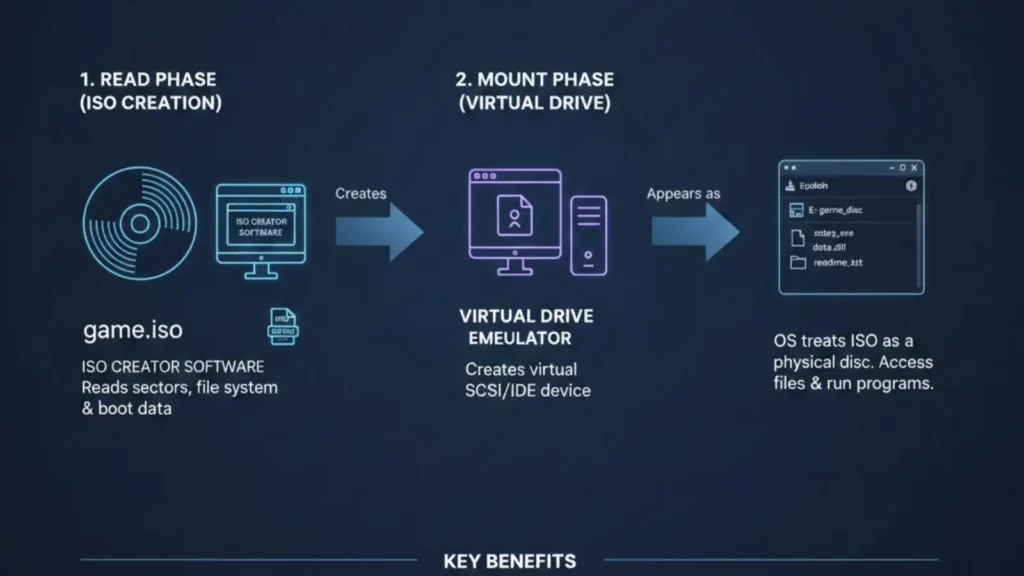
An ISO file is an archive that stores the entire contents and filesystem structure of an optical disc (CD/DVD/Blu-ray) in a single file. Think of it as a sector-level copy of a disc packaged as one portable file. ISO files are used for software distribution, backups, and bootable media. An ISO creator is software that generates that file from a disc or from selected files/folders.
Why use an ISO creator? (Benefits)
- Consolidation. Group many files and folder structures into a single, shareable file.
- Bootable media. Create bootable installers for OS recovery or deployments.
- Archival. Preserve disc layout, metadata, and structure for long-term storage.
- Convenience. Mount ISO files as virtual drives without needing physical discs.
- Distribution. Easier to distribute a single ISO than many loose files online.
Quick checklist before you create an ISO
- Confirm you legally own the disc or have the right to duplicate it.
- Use a clean optical drive and a stable USB/drive connection.
- Have enough free disk space (ISO size ≈ original disc size).
- Decide if the ISO needs to be bootable (OS installers require extra steps).
- Verify the final ISO with a checksum or the tool’s verify option.
How to choose the right ISO creator (factors)
- Supported formats: ISO only? Or BIN/NRG/DMG too?
- Mounting & emulation: Do you need to mount images without burning?
- Editing features: Add/remove files inside an image after creation?
- Boot support: Can it make bootable USB/ISO images?
- Platform compatibility: Windows, Linux, and macOS support.
- Resource footprint & ads: Lightweight vs feature-heavy with bloat.
The 6 best free ISO creator tools (detailed reviews)
1) ISO Workshop — balanced, user-friendly ISO creator
ISO Workshop is a beginner-friendly ISO creator with a clean UI for creating, converting, and extracting ISO images. It covers most common needs: create ISO from files/folders, rip disc → ISO, extract files, and burn to disc.
Best for: Users who want an easy GUI and conversion support (PDI, DMG, NRG → ISO).
Pros
- Simple interface and step-by-step flows.
- Converts many image formats to ISO/BIN.
- Low CPU usage; fast read/write on most systems.
Cons - Advanced features (some) are reserved for the pro version.
- Windows only.
Quick example: Use ISO Workshop to convert a downloaded NRG file to ISO for broader compatibility, then mount the ISO for access.
2) PowerISO — a powerful editor and ISO creator
PowerISO is a long-standing tool that can create, edit, encrypt, and burn images. It handles many image formats and supports making bootable ISO files, which makes it useful for creating OS install images.
Best for: Power users who need editing, encryption, and bootable image creation.
Pros
- Edit ISOs directly (add/remove files).
- Create bootable ISOs and burn to CD/DVD/BD.
- Shell integration and context menu actions.
Cons - The free version has functional limits (file size/feature locks).
- Slightly heavier install footprint.
Pro tip: When building a bootable ISO for Windows, make sure you include the boot sector/boot files rather than just copying files into a directory.
3) Free DVD ISO Maker — disc → ISO, no fuss
Free DVD ISO Maker focuses on ripping physical discs (CD/DVD) to ISO files. It automatically detects the disc, shows the source drive, and exports an ISO image quickly.
Best for: Users who only need to back up optical discs to ISO files.
Pros
- Extremely simple workflow: insert disc → select → create.
- Lightweight and focused on disc backup.
Cons - Limited to disc ripping—no advanced editing or mounting.
- Lacks extensive format conversion.
When to use: Back up old DVDs to your hard drive for preservation.
4) ImgBurn — the classic lightweight ISO creator
ImgBurn is a veteran favorite: small, fast, and reliable for creating, burning, and verifying image files. It offers multiple modes (Read, Build, Write, Verify, Discovery) that cover most imaging needs.
Best for: Users who want a minimal, scriptable tool with powerful options.
Pros
- Very low resource use; fast read/write performance.
- Supports many formats and advanced options (layer break for dual-layer DVDs).
- Image queue system — burn multiple ISOs sequentially.
Cons - The interface is dated and can be intimidating.
- Windows-centric (no official macOS client).
How to verify: Use ImgBurn’s “Verify” mode after creating an ISO to ensure integrity before burning or deleting originals.
5) ISODisk — lightweight virtual drive + ISO creator
ISODisk provides quick ISO creation plus virtual CD/DVD mounting. It can create up to 20 virtual drives and mount ISO images directly for instant access.
Best for: Users who need many virtual drives or lightweight mounting plus ISO creation.
Pros
- Quick mounting, small installer footprint.
- True disc copy capability — resulting ISOs are reliable for backups.
Cons - Very basic editing features.
- Interface is utilitarian and minimal.
Use case: Mount software install ISOs without burning a disc — handy for testing multiple images simultaneously.
6) 7Burn — simple builder for CD/DVD/BD images
7Burn is a straightforward utility for building ISO images from files, folders, or a disc drive. It supports CD, DVD, and Blu-ray image creation and has a direct Build & Burn workflow.
Best for: Users who want a no-frills ISO builder with straightforward options.
Pros
- Clear build options and media type selection.
- Can create Blu-ray-sized ISO images.
Cons - Lacks some conversion and mounting features.
- Less common — smaller community/user base.
Quick workflow: Choose Build mode → add files/folders → set destination and label → Build Image.
Common tasks — step-by-step (examples)
Create an ISO from a physical DVD (using ImgBurn — example)
- Insert the DVD into the optical drive.
- Open ImgBurn → choose Create image file from disc.
- Select source drive and output location (filename.iso).
- Click Read, wait for completion, and then Verify.
Make a bootable ISO for OS installs (general steps)
- Gather boot files and boot sector (or use a bootable source folder).
- In an ISO creator that supports bootable images (PowerISO/ISO Workshop), choose Make bootable image and select the boot sector file (e.g., etfsboot.com for Windows).
- Build and test in a virtual machine before deploying.
Mounting an ISO (example with ISODisk)
- Install ISODisk → create a virtual drive.
- Right-click an ISO file → choose Mount (or use ISODisk UI).
- The ISO behaves like a real disc drive in Explorer/Finder.
Verifying and testing your ISO
- Checksum method: Generate MD5/SHA1 of the ISO and compare it to the source if available.
- Tool verify: Most ISO creators include a verify option — use it after creation.
- Virtual test: Mount the ISO in a VM (e.g., VirtualBox) to ensure the boot sector and files work as intended.
- Burn test (optional): Burn to a rewritable disc and test on a spare machine.
Troubleshooting common problems
- Bad sectors on disc: Read errors during ISO creation — try a different drive or a specialized disc recovery tool.
- Bootable ISO fails: Check that the boot sector was included; use a tool that explicitly supports bootable images.
- Large ISO (>4GB) not copying to FAT32 drive: Use exFAT/NTFS or split the image; FAT32 has a 4GB file size limit.
- Corrupt ISO after transfer: Use checksum verification and a reliable copy method (avoid network interruptions).
Pros & cons summary (quick reference)
ISO Workshop
- Pros: User-friendly, converts many formats.
- Cons: Pro features are paid.
PowerISO
- Pros: Powerful editing and bootable options.
- Cons: Free limits; heavier.
Free DVD ISO Maker
- Pros: Simple, disc→ISO focus.
- Cons: Limited features.
ImgBurn
- Pros: Lightweight, reliable, advanced options.
- Cons: Dated UI; Windows only.
ISODisk
- Pros: Mount many virtual drives, true disc copy.
- Cons: Basic feature set.
7Burn
- Pros: Built for CD/DVD/BD, straightforward.
- Cons: Fewer extras.
Best tool for the user scenario
- I want the most straightforward disc backup: Free DVD ISO Maker or 7Burn.
- I want powerful editing and bootable ISOs: PowerISO.
- I want lightweight and reliable burning/reading: ImgBurn.
- I need virtual drives and mounting frequently: ISODisk.
- I want format conversions and easy UI: ISO Workshop.
Security and legal notes
- Make ISOs only for discs you own, or where duplication is permitted.
- Beware of bundled adware — download from the vendor’s official site and verify installer checksums [source].
- Keep ISO archives in secure storage (encrypted disk or password-protected containers) if they contain sensitive software or data.
Wrap up — final recommendation.
If you need a dependable, easy ISO creator for most tasks, start with ImgBurn (for read/write/verify) or ISO Workshop (for user-friendly format conversion). Use PowerISO when you need advanced editing and bootable capabilities. Always verify ISOs before use, and choose the tool that matches your workflow rather than the fanciest feature list.
Frequently Asked Questions
Q: What’s the difference between ISO and other image formats (BIN, NRG, DMG)?
A: ISO is a widely supported standard for optical disc images. BIN/NRG/MDF can contain extra metadata or proprietary layouts; convert them to ISO when compatibility is needed.
Q: Can I mount an ISO without burning it to a disc?
A: Yes — many ISO creators include mounting features (or use OS built-in mounting). Mounting lets you access files as if a physical disc were inserted.
Q: Are ISO creators safe to use?
A: Most popular ISO creators are safe if downloaded from official sites. Avoid unofficial mirrors and check checksums when available.
