
PCSX2 is the most mature PlayStation 2 emulator available for desktop and mobile platforms. It replicates PS2 hardware behavior using software recompilation techniques and plugins. For many players, PCSX2 is the easiest path to play PS2 classics on Windows, Linux, macOS (unofficial builds), and Android.
This long-form article explains PCSX2 BIOS essentials, step-by-step download and setup, how to load PS2 ISO files, optimization tips, and legal/ethical considerations. Read through the practical examples and troubleshooting sections to avoid the most common mistakes.
What is the PS2 BIOS, and why does PCSX2 need it?
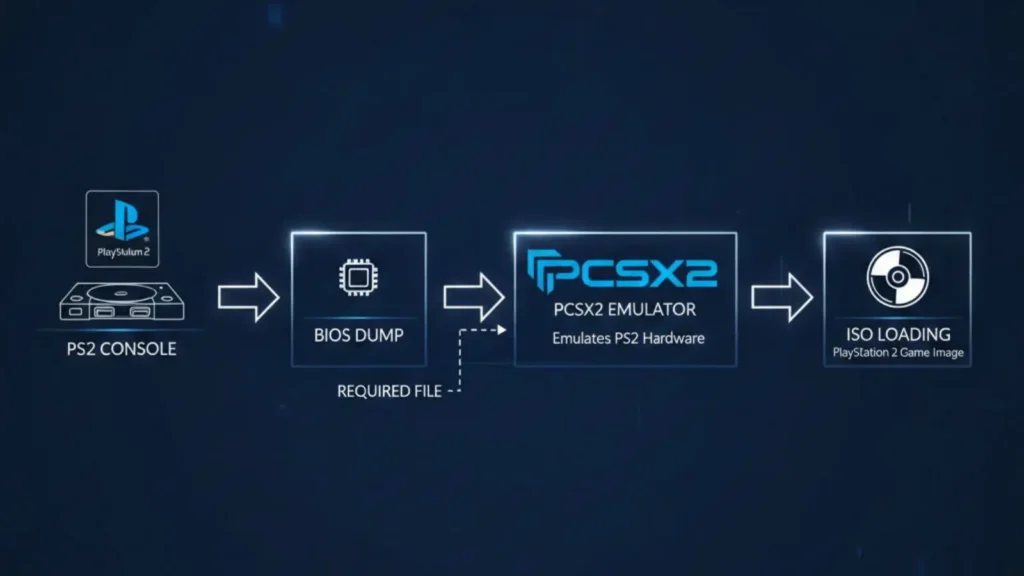
The PS2 BIOS is the system firmware from an actual PlayStation 2 console. PCSX2 does not ship with any PS2 BIOS files for legal reasons, so you must obtain the BIOS yourself by dumping it from a PS2 you own.
Why the BIOS matters
- The BIOS contains the PS2 system ROMs, region data, and other low-level code the PS2 uses at boot. PCSX2 uses that code to accurately emulate system behavior.
- Different BIOS versions/regions can affect compatibility; newer dumps or specific region BIOS files can run certain games more reliably.
- Using your own BIOS is both legal and the most accurate way to run games on PCSX2.
What PCSX2 does with the BIOS
- PCSX2 invokes the BIOS to run the PS2 boot sequence, handle memory card emulation, and perform system checks.
- The emulator pairs the BIOS with plugins (video, audio, input) and CPU recompilers to simulate PS2 hardware.
- Accurate BIOS + optimized settings = fewer bugs, better compatibility, and smoother gameplay.
System requirements: minimum vs recommended for PCSX2
PCSX2 runs on surprisingly modest hardware, but for stable performance at higher internal resolutions, you’ll want a modern CPU and GPU.
Minimum (playable at native resolution):
- OS: Windows 7 or newer, many Linux distros (32/64-bit), macOS builds exist (community).
- CPU: SSE2-capable CPU, dual-core recommended (older Pentium 4 / Athlon64 era).
- GPU: Direct3D10/OpenGL 3.x support; entry-level GPUs can run many titles.
- RAM: 4 GB.
Recommended (for upscaling, widescreen hacks):
- OS: 64-bit Windows 10/11 or modern Linux.
- CPU: 4 cores, strong single-thread performance (AVX/AVX2 support recommended).
- GPU: Mid-range GPU (e.g., modern GTX/RTX or equivalent) with Direct3D11/OpenGL 4.5 support.
- RAM: 8 GB or more.
Tip: Single-thread CPU performance matters for many PS2 games; a faster core typically improves emulation more than more cores.
Downloading and installing PCSX2
PCSX2 is free and open-source. Use the official PCSX2 website or verified distribution channels to get the latest stable or development builds.
Installation steps
- Download the latest PCSX2 installer for your OS.
- Run the installer (Windows) or follow distro-specific instructions (Linux).
- Launch PCSX2 and choose a language on first run.
- Configure default plugins or accept the recommended settings to get started.
Plugins: PCSX2 uses plugin modules for graphics, sound, controller input, and CD/DVD access. The setup wizard suggests defaults that work for most systems.
Obtaining the PS2 BIOS legally
You must dump the BIOS from a PlayStation 2 console you own. Tools and guides exist to extract the BIOS to your PC.
Legal & ethical note
- Downloading BIOS files from the internet is generally illegal and unsafe. Always dump from your own hardware.
- Using a BIOS you don’t own can expose you to legal and security risks—avoid that route.
How to dump the BIOS (high-level)
- Use a PS2 running a homebrew-enabled method (e.g., Free McBoot + BIOS dumper) or hardware solutions that read the flash.
- Many step-by-step guides exist for BIOS dumping; follow a reputable tutorial and verify checksums if provided.
PCSX2 BIOS setup: step-by-step
After installing PCSX2 and dumping your BIOS, point the emulator to the BIOS folder and finish initial configuration.
Quick setup checklist
- Launch PCSX2 — choose language on first prompt.
- When asked for plugins, keep the defaults unless you have a specific need.
- Open Config > Plugin/BIOS Selector or follow the wizard to choose BIOS.
- Uncheck “Use default settings” if instructed, click Browse, and select the folder with your BIOS dump files.
- Select a recommended/latest BIOS entry and click Finish.
If the BIOS does not appear, confirm the files are unzipped to the chosen folder and that the dump was successful.
Loading PS2 ISO files in PCSX2
ISOs are disc images of PS2 games. If you own the original disc, you can rip it to ISO and play it in PCSX2.
Create an ISO from a disc.
- Windows: ImgBurn (or similar) can create a .iso by selecting “Create image file from disc” and choosing the optical drive as the source.
- Linux/macOS: use dd or GUI disc imaging tools to produce ISO files from owned discs.
Load ISO in PCSX2
- In PCSX2, go to the CDVD menu.
- Choose ISO Selector > Browse and select your ISO.
- Use System > Boot ISO (fast) to start the game quickly (bypasses BIOS menu).
- Or use System > Boot CDVD (full) to run through the BIOS like a console.
If the ISO is compressed in ZIP/RAR, extract it before loading. Some ISOs are packaged as other formats—convert or extract to a standard .iso if necessary.
Performance tuning and optimization
PCSX2 gives many settings that affect speed, graphical fidelity, and compatibility.
CPU & speed hacks
- Use the EE/IOP and VUs settings carefully — enabling aggressive speed hacks can improve framerate but may produce glitches.
- Prefer a fast CPU core over many slow cores. Emulation is often limited by single-thread performance.
- Enable the appropriate CPU recompiler (e.g., “Recompiler (JIT)”) for best speed.
Video & resolution
- Internal resolution upscaling dramatically improves visual quality. Start with 2x native and increase as your GPU allows.
- Use texture filtering and anti-aliasing sparingly; some games may require specific plugin patches to render correctly.
- Aspect ratio settings let you maintain the original 4:3 or stretch to 16:9 widescreen; widescreen hacks exist for many titles.
Audio & controller tips
- For audio glitches, try different SPU2 audio plugin settings or latency adjustments.
- Map controllers via the input plugin and test buttons in the PCSX2 controller config dialog. Save controller profiles for different games.
Save systems
- PCSX2 supports both virtual memory cards (compatible with in-game saves) and save-states (quick snapshots). Use both—memory cards for normal progress, save-states for experiments.
Common issues and fixes
Here are frequent PCSX2 problems and how to resolve them.
Black screen or crash on boot
- Ensure you pointed PCSX2 to a valid BIOS from your own PS2.
- Try different graphics plugins (Direct3D vs OpenGL) and toggle hardware/software rendering options.
- Disable aggressive speed hacks and use default settings to isolate the problem.
Controller not detected
- Confirm the input plugin is configured and controllers are mapped.
- On Windows, check device drivers and gamepad calibration in the OS settings.
- Use a wrapper (x360ce) for older controllers that don’t natively emulate an XInput device.
Performance dips/stuttering
- Lower internal resolution or disable high-cost post-processing effects.
- Close background apps, especially web browsers and streaming apps that use CPU/GPU.
- If using integrated graphics, switch to a discrete GPU if possible.
Examples: Game-specific tips
Different PS2 titles behave differently under PCSX2. A few concrete examples:
- Final Fantasy X/X-2 — benefits greatly from internal resolution upscaling; watch for UI scaling issues that require HUD mods or plugin tweaks.
- Kingdom Hearts II — heavy CPU use during camera-heavy scenes; enable multi-threaded options and increase EE/IOP clock if available.
- Shadow of the Colossus — works well with high resolution, but needs careful camera and patch settings for widescreen fixes.
- Metal Gear Solid 3 — may require compatibility options for accurate audio pitch; experiment with SPU2 latency settings.
When in doubt, check the PCSX2 game compatibility list (community-maintained) for title-specific recommendations. [source]
Advanced: plugins, patches, and widescreen hacks
PCSX2 supports community patches and plugins that expand functionality.
Useful plugin categories
- Graphics — the main performance and quality control; many users prefer Direct3D11 or OpenGL.
- Audio — SPU2 plugins manage sound emulation; some plugins offer better synchronization or less stutter.
- Input — controller mapping, keyboard support, and vibration support.
- CDVD — ISO access and disc-reading controls.
Widescreen and community patches
- Many games have fan-made widescreen patches that correct the field of view and UI elements for 16:9. Apply them carefully and create backups.
- Patches can be applied as .patch files or via the PCSX2 patching interface, depending on the game.
Legal and ethical considerations
Respect copyright and ownership when using.
- Only dump BIOS and game ISOs from consoles and discs you own. Downloading BIOS or ISOs you don’t own is illegal in many jurisdictions.
- Use PCSX2 for preservation, development, testing, or to play backups of games you purchased.
- Be mindful of region locks and licensing—some games may have distribution restrictions.
Quick troubleshooting checklist
If a game won’t run, run through this checklist:
- Confirm your BIOS is a legal dump from your own PS2.
- Use the recommended PCSX2-build for the game (stable vs dev).
- Try different video/audio plugins and default settings.
- Lower internal resolution and disable heavy effects.
- Check controller mapping and memory card settings.
- Search community forums or the official compatibility list for game-specific patches.
Conclusion
PCSX2 remains the best option for running PlayStation 2 titles on modern hardware. By using a legally obtained PS2 BIOS, correctly configuring plugins, and optimizing settings for your machine, you can play most classics at improved resolutions with extra features like save-states and graphical enhancements. Remember to respect copyright: dump your own BIOS and use ISOs from discs you own. With the right tweaks, PCSX2 delivers a faithful and often superior way to experience PS2 games today.
Ready to play your favorite PS2 classics on a modern PC? Download the official PCSX2 build, dump your PS2 BIOS legally, and start testing games today — and if you want, share which title you’re targeting and I’ll recommend tailored settings.
Frequently Asked Questions
Is PCSX2 legal to use?
Itself is legal and open-source. Legal issues arise if you download a PS2 BIOS or game ISO you do not own. Always dump the BIOS from your own PlayStation 2 and use game copies you legally possess.
Where do I get the PS2 BIOS for PCSX2?
You must extract (dump) the BIOS from a PS2 console you own using homebrew tools or hardware methods. Do not download BIOS files from untrusted websites. Follow a reputable step-by-step guide for the dump process.
My game runs slowly — how can I improve performance in PCSX2?
Improve performance by lowering internal resolution, using a faster single-core CPU, selecting the appropriate recompiler in PCSX2, and disabling aggressive hacks that cause instability. Also, try different graphics plugins and close background apps.
