
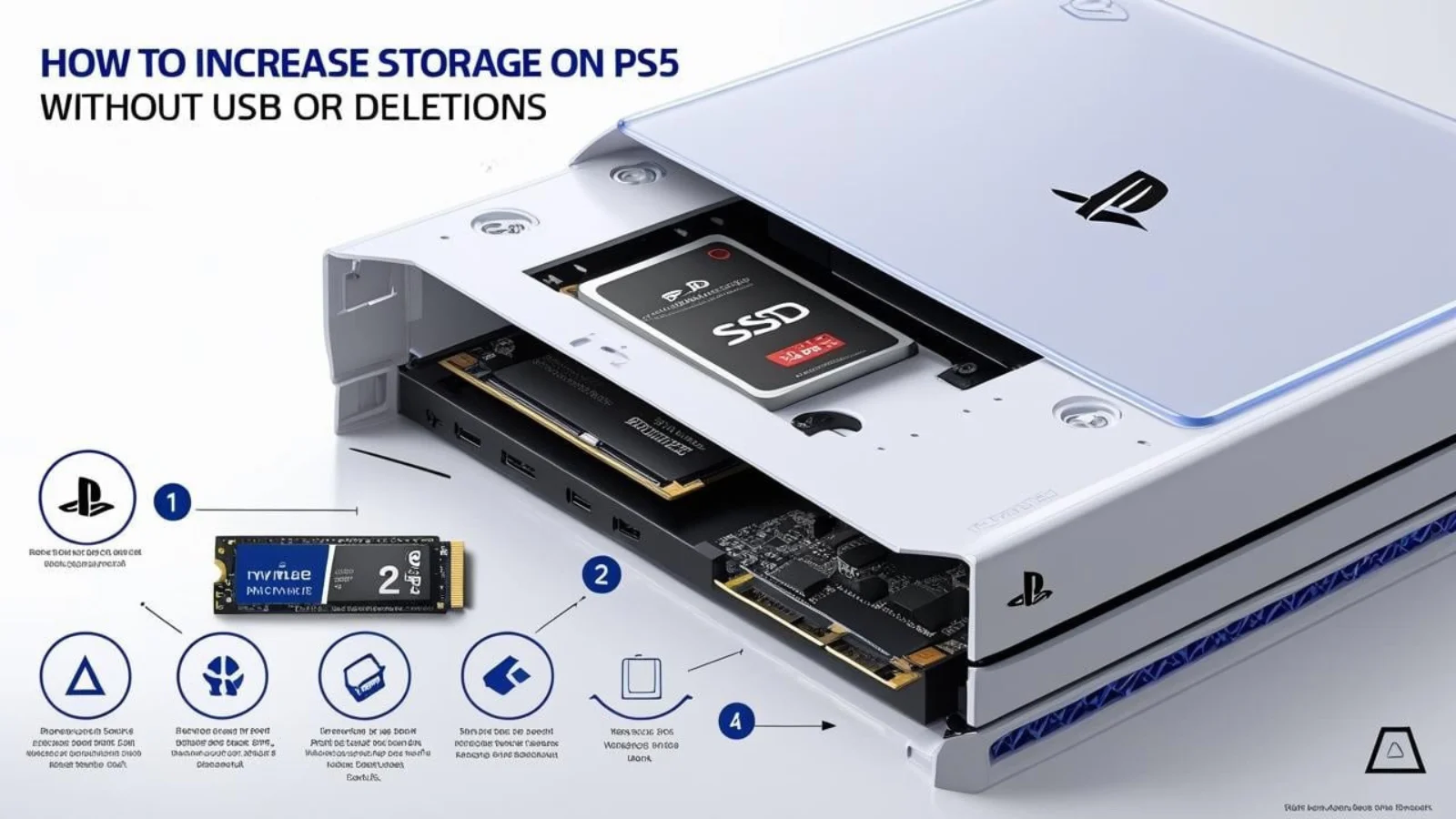
You can expand your (PS5) PlayStation 5 storage by adding an internal M.2 SSD, managing game data efficiently, or using cloud storage for saves – these methods expand your console capacity and help you avoid deleting games or relying on USBs. The PlayStation 5 offers fast performance and immersive gaming experiences, but its limited internal storage can quickly run out when you start building a substantial game library. The system comes with around 667 gigabytes of usable space, and many games today use 50 to 100 gigabytes or more for installation.
For gamers who want to install multiple titles, download updates, and keep their saved data accessible, managing storage becomes a key concern that affects daily gaming. The good news is that you don’t need to delete your favorite games to free up space for new installations. Sony allows users to expand their PS5 storage in several simple ways that maintain performance and convenience. This guide will show you all the best methods, including how to get more storage on PS5 without deleting games, without using USB devices, or without a hard drive setup.
Add an Internal M.2 SSD to Your PS5
The fastest and most efficient way to get more storage on your PS5 involves installing a compatible M.2 SSD inside the console. Sony designed the PS5 with an extra SSD slot specifically for this purpose, allowing you to buy a PCIe Gen4 M.2 SSD with a heatsink and install it through a simple setup. Once installed, this storage acts like the built-in drive, supporting full-speed game downloads and playback without any performance compromises.
What You Need for Installation
For the installation process, you’ll need a Gen4 M.2 NVMe SSD such as the WD Black SN850 or Samsung 980 Pro, along with a heatsink to manage temperature effectively. A small screwdriver is essential, and ensure your firmware is updated to the latest version before beginning. After installing the SSD, format it using your PS5 settings and move games freely between drives for optimal organization.
This upgrade gives you more space with no compromise on performance, making it a worthwhile investment. Popular PS5-compatible M.2 SSDs include models from Samsung, WD Black, and Seagate, so make sure the drive has a heatsink or attach one before installing. This upgrade does not require deleting any existing data or relying on external hardware, and once you set it up, the added space becomes permanent.
Use an External Hard Drive or SSD for PS4 Games
An external hard drive can store and play PS4 games while freeing up PS5 space for newer titles that demand the console’s full capabilities. While you cannot run PS5 games from an external hard drive, you can move them to this storage for safekeeping and play PS4 games directly from the external drive. This approach helps save room on your internal storage for games that truly need the PS5’s advanced features.
This method proves especially useful if you play both PS4 and PS5 games regularly. Moving PS4 titles to an external drive gives you more space for large PS5 downloads without needing to delete anything from your collection. Compatible external drives include USB 3.0 models with storage sizes up to 8 terabytes, and solid-state external drives offer faster performance than spinning hard drives, though both types work well for storage needs.
Benefits of External Storage for PS4 Games
This solution instantly frees up internal space while allowing you to install large PS4 game collections without worry. It supports plug-and-play transfer between consoles, making it convenient for sharing games with friends. However, keep in mind that PS5 titles must be transferred back to internal storage before playing them.
How to Increase Storage on PS5 Without Deleting Games
You can get more PS5 storage without deleting games by installing an internal M.2 SSD, using external drives for PS4 titles, or strategically moving games between drives as needed. One reliable option is to buy a compatible M.2 SSD and install it inside your console, which expands your usable space without touching your current game library. Another solution involves using an external drive for older games, so your PS5’s main storage can stay focused on newer ones that require the system’s full power.
You can also move PS5 games back and forth between storage locations based on your gaming schedule. If a game is not currently in use, transfer it to an external drive for temporary storage, then move it back when you want to play. This strategy lets you keep all your games without losing progress or reinstalling data, ensuring your gaming library stays intact. These options provide flexibility and protect your favorite games while giving you room to grow your collection over time.
How to Increase Storage on PS5 Without a USB
To get more storage on your PS5 without using USB devices, install an internal M.2 SSD or use PlayStation cloud storage for game saves instead. Internal SSDs connect directly to your PS5’s motherboard and do not require any external connection, keeping your setup streamlined. Once installed, they act as built-in storage and do not take up a USB port for other accessories.
If you only need more space for saved data, PlayStation Plus includes cloud storage functionality. With cloud saves, your game data stays safe online, freeing up local space for actual game installations. Both options improve your storage situation without needing to plug in a USB drive, helping you keep your setup clean and your ports open for other uses like controllers or accessories.
Advantages of Non-USB Solutions
These approaches create a cleaner setup with fewer devices cluttering your gaming area, ensuring no loss of port access for essential accessories. You maintain full compatibility with high-speed gaming experiences while keeping everything organized. Internal SSDs and cloud storage give you the speed and reliability you need without using USB connections.
How to Increase Storage on PS5 Without a Hard Drive
You can increase PS5 storage without a hard drive by adding an M.2 SSD or managing your storage using game transfer and cloud backup strategies. Hard drives are not required to boost your PS5 space effectively – instead, use a high-speed M.2 SSD for full compatibility and performance. This upgrade lets you install and play PS5 games directly from the new drive without any limitations.
If you want to avoid physical storage upgrades entirely, cloud storage offers a digital solution for managing space. Move your game saves to the cloud, then delete and reinstall games without losing progress when needed. While this doesn’t increase raw storage, it makes space easier to manage for players who prefer minimal hardware setups.
When to Skip the Hard Drive Option
If you play mostly PS5 games and prefer sleek, device-free setups, avoiding hard drives makes sense. Players who already have high-speed internet and cloud access will find these alternatives more convenient. In these cases, internal or cloud-based solutions provide better speed and usability for your gaming experience.
Manage Game Data Smartly for Extra Space
Smart storage management helps you get more PS5 space by reducing clutter and making room for new titles without major hardware investments. Use the storage settings to review which games or apps are using the most space on your system. If a title includes extra language packs, unused modes, or large updates you don’t need, remove these parts you no longer need for daily gaming.
Many PS5 games allow the selective uninstalling of features like multiplayer or campaign modes separately. Also consider clearing cached data and old screenshots if space gets tight, as these items build up over time and can use multiple gigabytes of valuable storage. Checking your storage usage every few weeks helps you stay in control and avoid unwanted surprises. It’s an easy way to gain a few extra gigabytes without buying new equipment or making major changes.
Use Cloud Storage to Save Game Progress
Cloud storage doesn’t add more physical space but protects your game progress and frees up local memory for installations. If you subscribe to PlayStation Plus, you get access to cloud saves automatically. This feature lets you delete and reinstall games without losing your progress, making it ideal for managing limited storage and rotating between installed games as your interests change.
Optimize Game Files and Delete Unused Data
Clean up your PS5 storage by removing unused parts of games, such as extra languages or unnecessary modes you never use. Many PS5 titles allow you to delete only certain parts, like multiplayer components or extra content packs. You can also remove old screenshots and unused apps to save gigabytes of space for more important content.
Regularly checking your Storage tab in Settings helps you stay on top of your usage patterns and identify space-wasting files. Even small deletions can add up significantly and delay the need for a larger upgrade, giving you more time to decide on expansion options.
Conclusion
Getting more storage on your PS5 becomes easy when you know the right steps and approaches available. You can install an internal M.2 SSD for full access to fast extra storage, or use an external drive for your PS4 library management. If you want to avoid USB devices or hard drives entirely, you can still expand storage through the internal slot or cloud backups for saves.
These methods let you avoid deleting your favorite games while keeping your console organized and efficient. If flexibility or budget concerns arise, try external or cloud-based methods first to see what works best. Whatever approach you choose, more storage means more freedom to play without limits or constant file management stress.
If you are a gaming enthusiast, then you must visit our pages to download the latest updated PlayStation bios files.
